CCM 1.3 Release Notes
Release date: April 2026
Continuous Control Monitoring 1.3 gives every persona on your compliance team their own view of compliance posture. Framework Owners see board-ready scorecards across all frameworks. Control Owners see the status of their controls at a glance. OU Owners see compliance scoped to their team - without asking the central compliance team for a report. Daily digest emails surface changes proactively so that nothing falls through the cracks.
What is new in CCM 1.3
| Feature | What it means for you |
|---|---|
| Framework compliance scorecards | See compliance health, failing requirements, and coverage across every framework in one view |
| Worst-results sorting | Failing requirements surface first, prioritised by severity, so you focus on what matters |
| Requirement drill-down | Inspect controls, test results, and remediation steps without leaving the framework view |
| Framework compliance export | Generate board-ready PDF and CSV reports filtered to exactly what you need |
| Controls Status View | Unified view of control health with "My Controls" default - see what you own and its status |
| Organisational units | Integration instances automatically become OUs, scoping compliance data to teams |
| Framework and control ownership | Assign Framework Owners alongside Control Owners for clear accountability |
| Daily digest emails | Proactive notifications for Framework Owners, Control Owners, and OU contacts |
Framework compliance scorecards
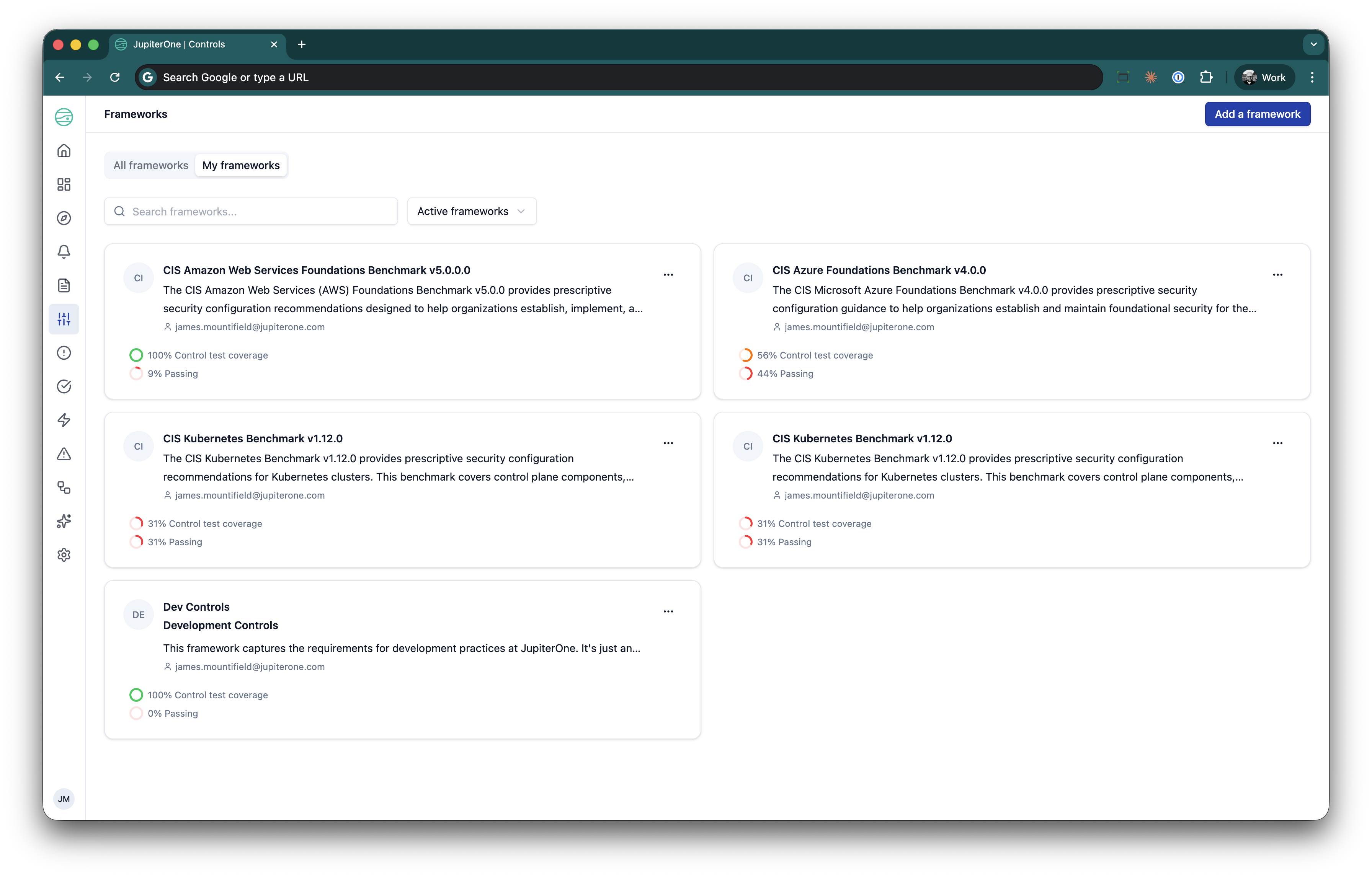
You can now see the compliance health of every framework at a glance. The new Framework Compliance View provides a scorecard for each framework showing health percentage, failing requirements, and control coverage.
What you see:
- A card-based grid of all your frameworks with name, controls coverage, and passing percentage
- Filter and search to find specific frameworks quickly
- Click any framework card to drill into its details
Framework detail view:
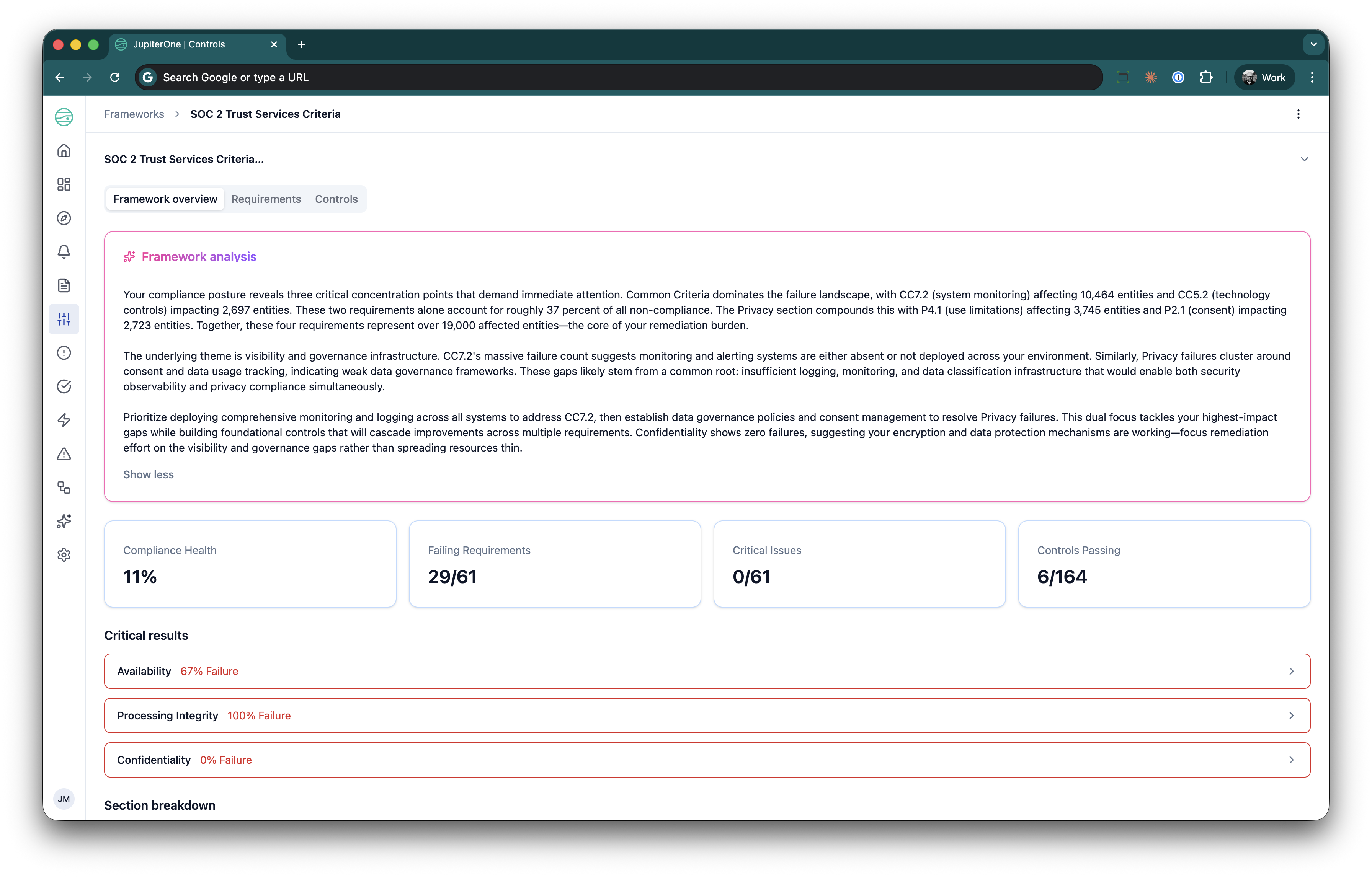
When you open a framework, a summary header shows key metrics:
- AI Generated analysis - A strategic summary of your framework
- Framework health percentage - overall compliance score
- Failing requirements - total count of requirements not passing
- High-priority failing requirements - critical failures that need immediate attention
Below the header, requirements are listed with their status, priority, and control mappings grouped by section. The detail view includes an Framework overview tab (the new compliance view) and a Manage option in the top right (the existing CCM 1.2 authoring UI).
Use the Framework Compliance View export to generate a board-ready compliance report. The PDF includes the JupiterOne logo and metadata, and the CSV provides one row per requirement for further analysis. Both formats respect your active filters.
Critical-results sorting
Requirements within a framework are filtered so that the most critical failures can be shown. You do not need to scroll through passing requirements to find the ones that need attention.
How it works:
- Requirements are filtered by failure count and priority (High, Medium, Low)
- Status tabs - All, Failing, Passing - let you toggle the view with live counts
- Each requirement card shows a priority badge, test counts, failure counts, and a description preview
- Failing requirements display a red Failing chip
Requirement drill-down
Click any requirement's control to open a detail drawer with:
- Summmary - The description of the control that monitors this requirement, details of the last evaluations, owner of impacted assets
- Control tests - The specific control tests for this requirement, what integrations they interact with, their status
- Control remediation - Remediation details for the control
- Exception process - Exception process details for the control
You can click Open control page to navigate to the full control detail.
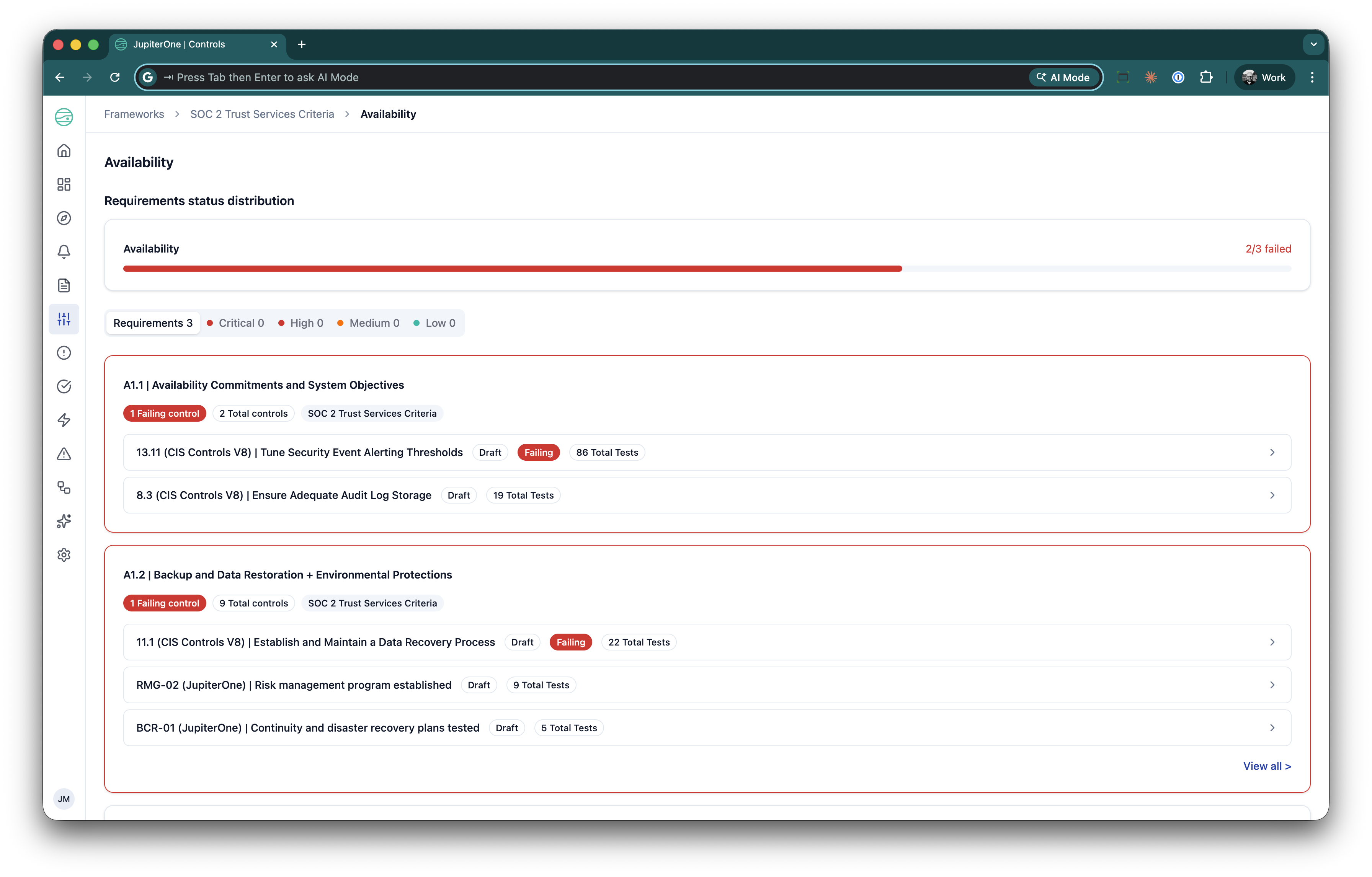
Combine the filter bar with the drill-down to quickly triage failures. Filter by priority and status, then click into each failing requirement to review its controls and remediation steps.
Framework compliance export
You can export your framework compliance status as a PDF or CSV at any time.
- PDF - Includes the JupiterOne logo, framework metadata, and compliance status. Suitable for board reporting and executive summaries.
- CSV - One row per requirement with columns for identifier, name, status, priority, control count, test count, failing tests, and last evaluated timestamp. Suitable for further analysis in spreadsheets.
Both formats respect your active filters, so you can export exactly the subset of data you need.
Controls Status View
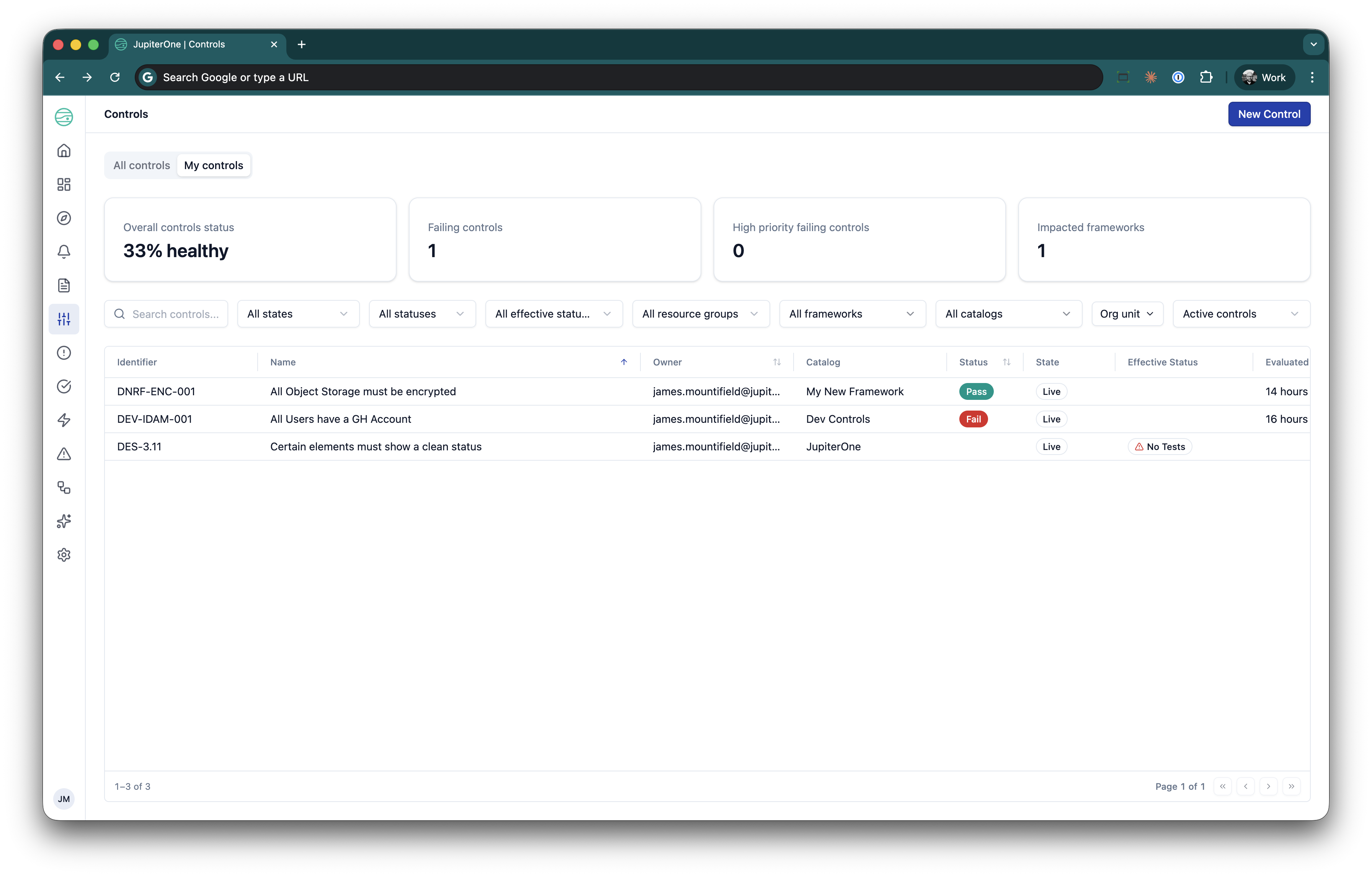
The new Controls Status View gives Control Owners and Asset Owners a single place to see the health of their controls.
Default experience:
- The view defaults to My Controls if you own any controls - showing only the controls assigned to you
- Each control displays its status (pass, fail, error, or not evaluated), last evaluated timestamp, and linked framework
- A summary header shows total controls, passing count, failing count, and pass rate
- Sort, filter, and search to find specific controls quickly
Clicking on a control takes you to that control's summary page. You can then drill down further into the individual control tests.
Control test drill-down:
Click any control test to see:
- Test result history / Live results with status and timestamps
- Linked assets / results with individual pass/fail status
- Specific failure reasons and affected assets
Filter and search:
- Filter inline by status, resource group, framework, or active/inactive state
- Open More filters for lifecycle state, effectiveness, attested status, catalog, and org units
- Filters use AND logic and are reflected in the URL for shareable links
- A Clear Filters action resets all filters at once
Export:
Export the current view as a CSV respecting all active filters. Columns include control name, status, last evaluated, framework, and owner.
Organisational units
CCM 1.3 introduces organisational units (OUs) that scope compliance data to teams. In this release, each integration instance automatically becomes an OU - no manual setup is required.
For full documentation of the OU capability - the admin interface, the OU filter in Compliance and Vulnerability Management, and the OU metadata on entities - see Organizational Units.
How it works:
- Every integration instance in your account automatically appears as an OU
- All graph entities carry an
_ouproperty linking them to their integration instance - The OU lifecycle is tied to the integration instance lifecycle - when you add or remove an integration, the corresponding OU is created or removed
OU admin overview:
Navigate to the OU admin page (Settings > Organizational Units) to see a table of all your OU groupings with:
- OU name and integration type
- Entity count
- Metadata: Primary and Secondary Owners, Jira project, and Slack channel (coming soon)
- OUs without routing metadata are indicated "missing" so you know what needs configuration
Routing metadata:
For each OU, you can configure operational routing metadata:
- Owner email - The primary and secondary people responsible for this OU
- Jira project - For ticket assignment from compliance drill-downs (coming soon)
- Slack channel - For notifications (coming soon)
All fields are optional. Changes persist immediately and are available via the API.
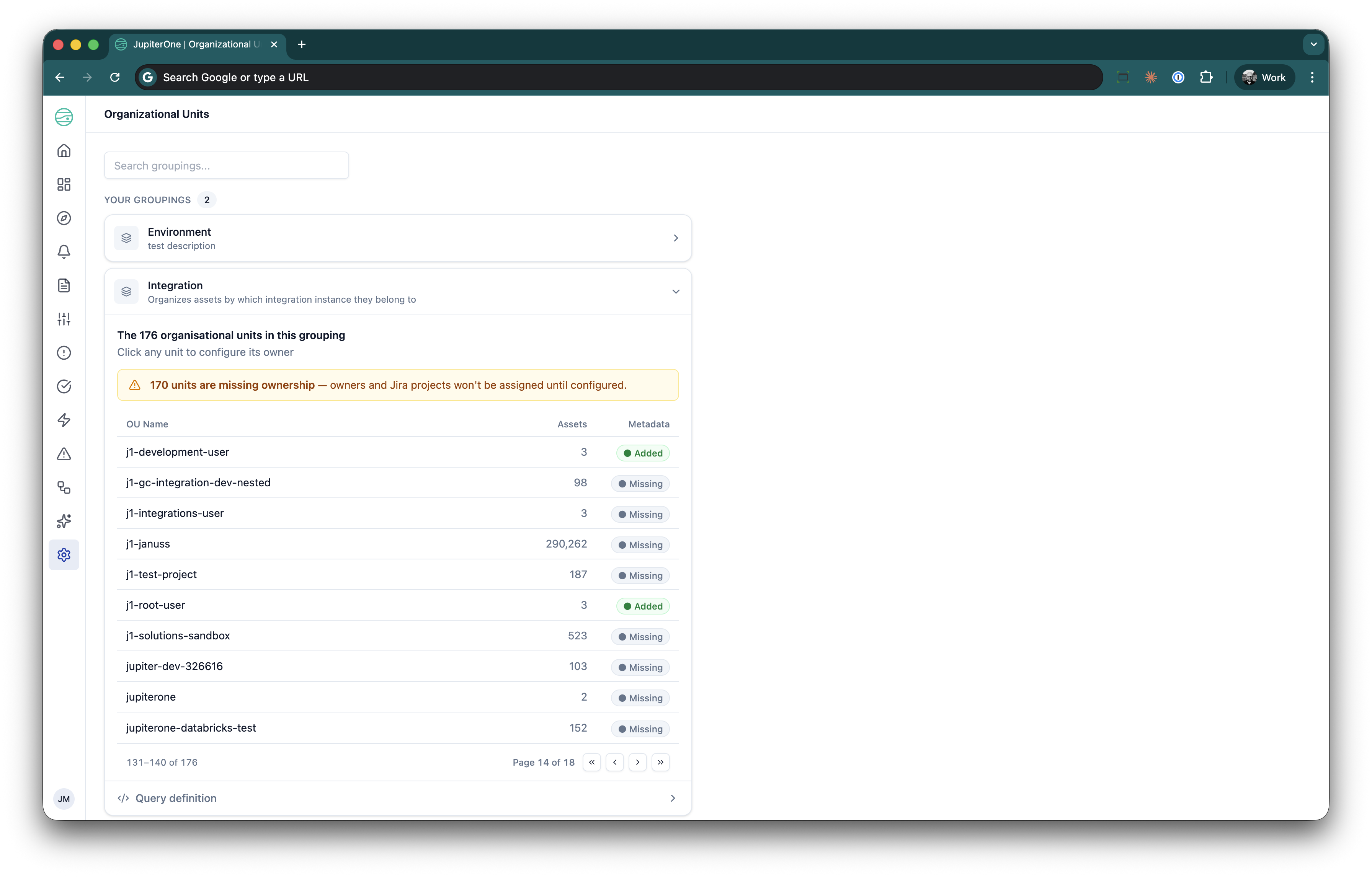
In this release, OUs are derived from integration instances. Future releases will expand the OU model to support custom organisational structures.
OU-scoped compliance views
When you select an OU in the Org Units filter (under More filters), the Controls Status View and drill-down filter to show only controls with results related to assets in that organisational unit.
How it works:
- Open More filters on the Controls page and select an OU from the Org units filter
- The controls list filters to show only controls with assets in the selected OU
- The summary header adapts to show the OU name and OU-specific compliance metrics
- The drill-down shows which assets within the selected OU are affected, with individual pass/fail status
The OU selection persists in the URL, so you can share a link to a specific OU's compliance view with a team member.
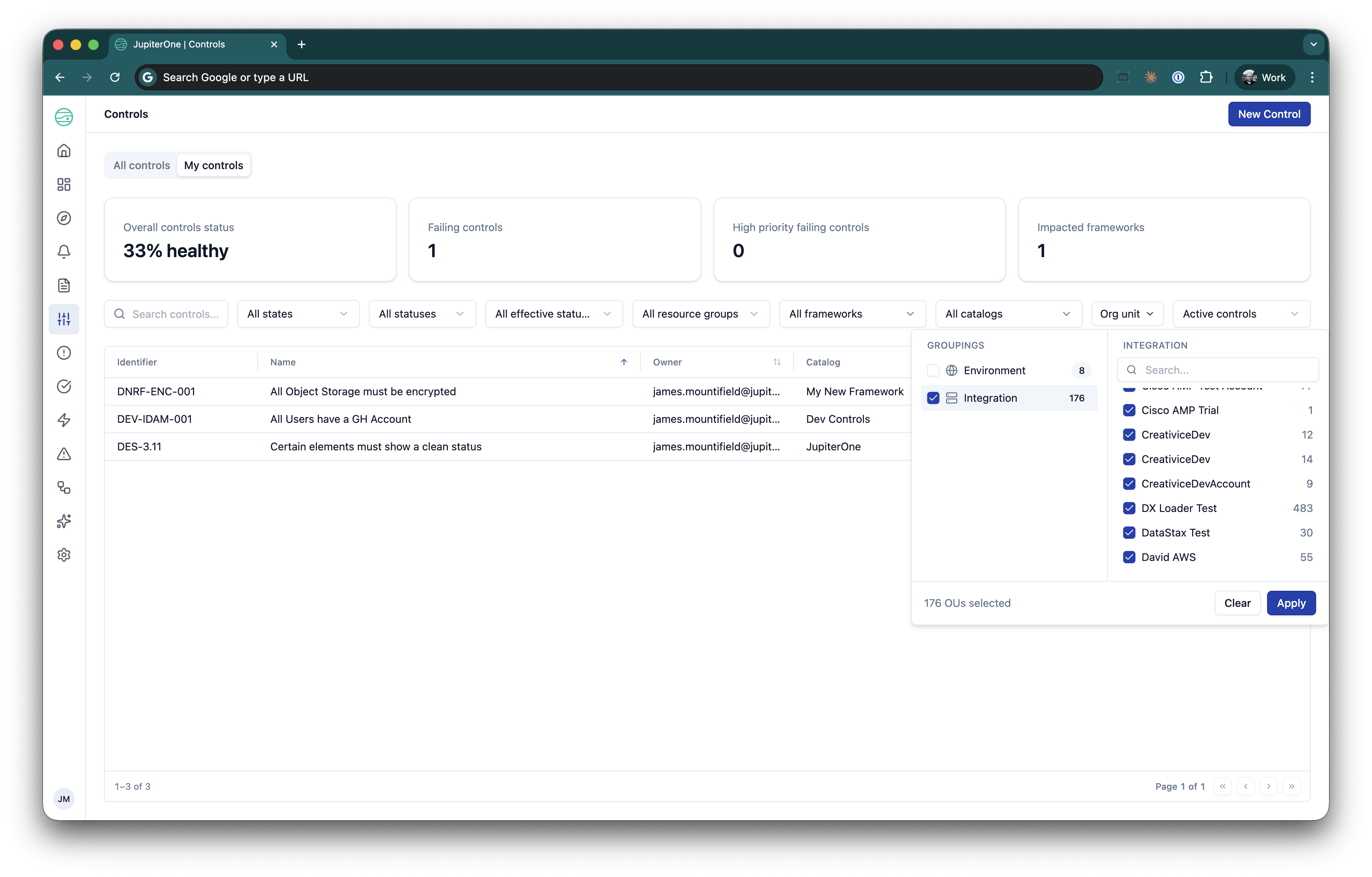
Use OU-scoped views to give each team lead a self-service compliance view. An IT or Cloud Ops leader can select their OU and immediately see their team's compliance posture without asking the central compliance team.
Framework and control ownership
CCM 1.3 adds Framework Owners alongside the existing Control Owners from CCM 1.2.
- Assign an owner to any framework using the user search and select dropdown
- Framework Owners can filter to see My Frameworks for a focused view
- Ownership enables targeted daily digest emails (see below)
The Framework Owner assignment follows the same pattern as Control Owner assignment - select any JupiterOne user from the dropdown.
Daily digest emails
CCM 1.3 delivers proactive compliance notifications so you do not need to check the dashboard manually. Each digest summarises actionable status changes and includes deep links back to the relevant view with pre-configured filters.
Framework Owner digest:
- Daily summary of compliance status for all frameworks you own
- Includes total frameworks owned, passing and failing counts, and compliance scores
- Per-framework breakdown with status details
- Only sent when actionable results exist - no noise on quiet days
Control Owner digest:
- Daily summary of status for all controls you own
- Includes total controls owned, passing and failing counts
- Per-control breakdown
- Deep links to the Controls Status View filtered to your controls
OU contact digest:
- Daily summary sent to the email address configured in the OU routing metadata
- Includes OU name, integration type, entity count, and compliance score
- Lists failing controls within the OU
- Contacts responsible for multiple OUs receive one consolidated email with each OU as a separate section
Digest emails are only sent when there are actionable results. If all your controls are passing and nothing has changed, you do not receive an email.
Getting started
If you are an existing CCM user: All new features are available immediately. Your existing control ownership assignments are preserved. To take advantage of the new views:
- Navigate to Compliance > Frameworks to see the new Framework Compliance View
- Click any framework to see the compliance scorecard and drill-down
- Navigate to Compliance > Controls Status to see the unified Controls Status View
- Assign Framework Owners to enable framework-level digest emails
- Configure OU routing metadata (owner email, Jira project, Slack channel) in the OU admin page to enable OU contact digests
If you are new to CCM: Start with the CCM 1.2 setup steps to create your frameworks, requirements, and controls. Once your control library is in place, the CCM 1.3 features - scorecards, status views, OU scoping, and digest emails - activate automatically.
For full feature documentation, see Continuous Control Monitoring.