Quality of life updates across the JupiterOne app
Release date: November 2026
A round of quality of life updates to the pages you use every day. It is easier to find what you are looking for, understand what it is, act on a result where you see it, and track it over time.
No. These updates are on for every account. Descriptions and suggested filters in assets inventory, and Describe your dashboard, need JupiterOne AI.
What is new
| What changed | What it means for you | |
|---|---|---|
| Find | Searchable filters everywhere, and a page for every class and type | Get to the assets you mean without writing a query |
| Understand | Assets inventory, hover cards and column sorting | See what your graph holds, and what each class, type and integration is |
| Act | Create on every query result | Turn a result into a rule, saved question, dashboard widget or control test |
| Track | One dashboard time range, sparklines and Auto arrange | Watch a number over time on a dashboard that stays tidy |
| Everywhere | A new account menu, one date picker and clearer errors | The app behaves the same way on every page |
Find
A page for every class and type
All assets is now Inventory, under Assets > Inventory, and every class and type in your account has its own page there. Press ⌘K (Ctrl+K on Windows and Linux), type a class or type, and select it to go straight to its page. Class and type names across the app link there too.
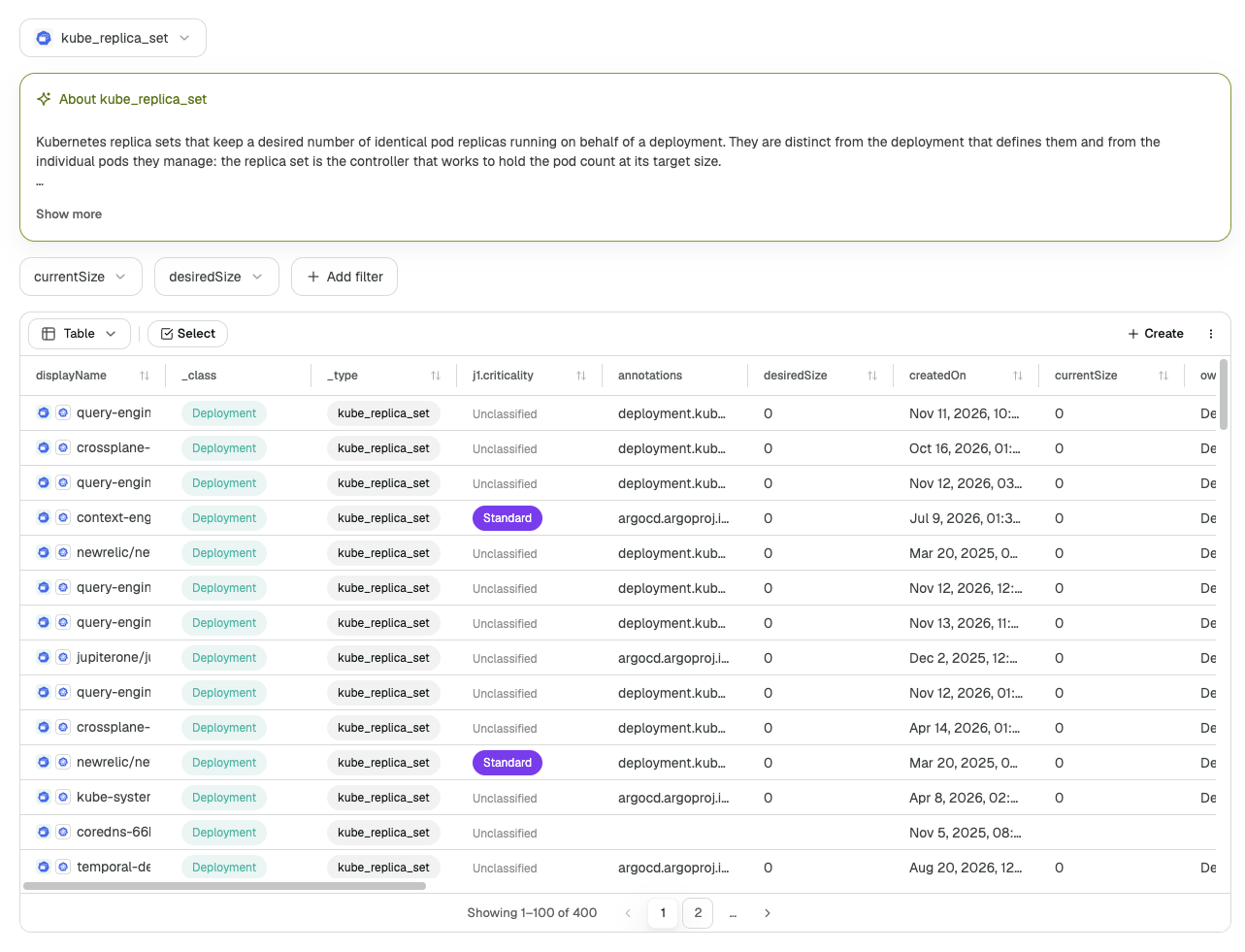
Filter by any property
On a class or type page:
| On the page | What it does |
|---|---|
| Suggested filters | Filters for the properties that matter most for this class or type. Needs JupiterOne AI |
| Add filter | Filter by any property. Choose the property, then an operator such as equals, contains or greater than, and the values |
| Match | With two or more filters, choose whether assets must match All or Any of them |
| More filters | Filters that do not fit on the bar |
| Clear filters | Removes every filter |
The J1QL query your filters make always shows above the results. Select Copy query to take it somewhere else.
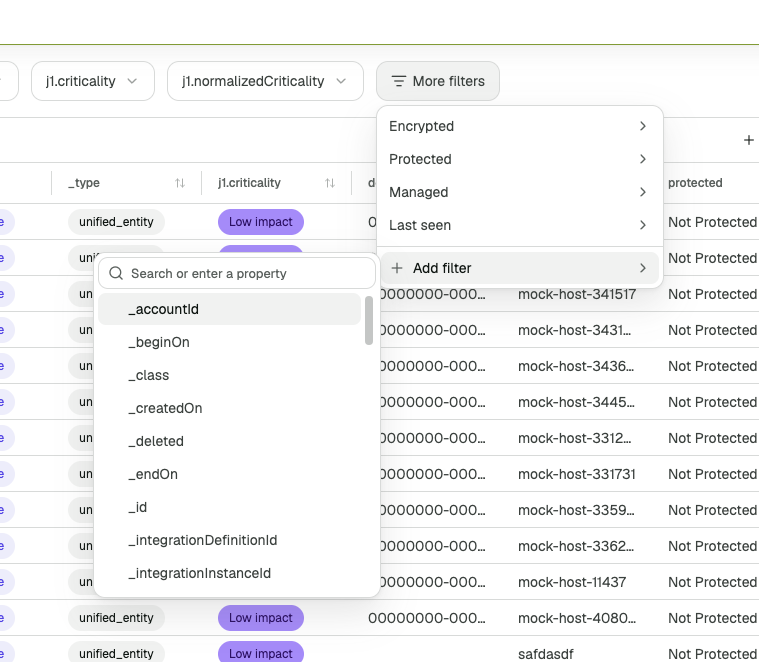
Searchable filters and menus
- Every list is searchable. Filters, selects and pickers all have a search box.
- More filters. A filter bar shows the filters that fit, and moves the rest into More filters, which shows how many are active.
- Clear filters. One button clears every filter on the page.
Understand
See what your graph holds
Inventory opens on a heatmap of your account. Each tile is a class, sized by how many assets it holds and colored by its category. Switch between Classes and Types above the heatmap, and hover a tile to see its count. Select a tile, or pick from Classes and types on the left, to open it.
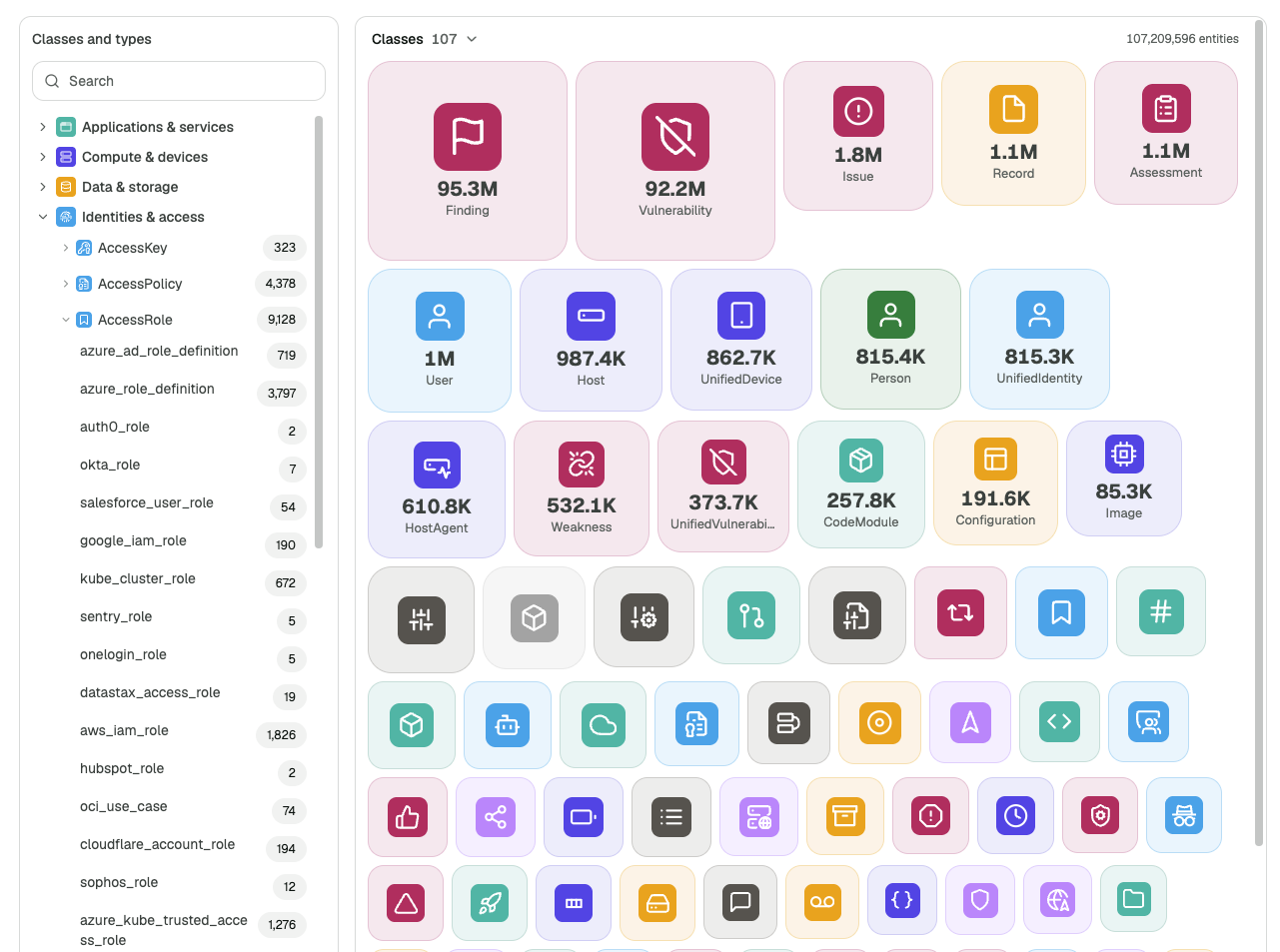
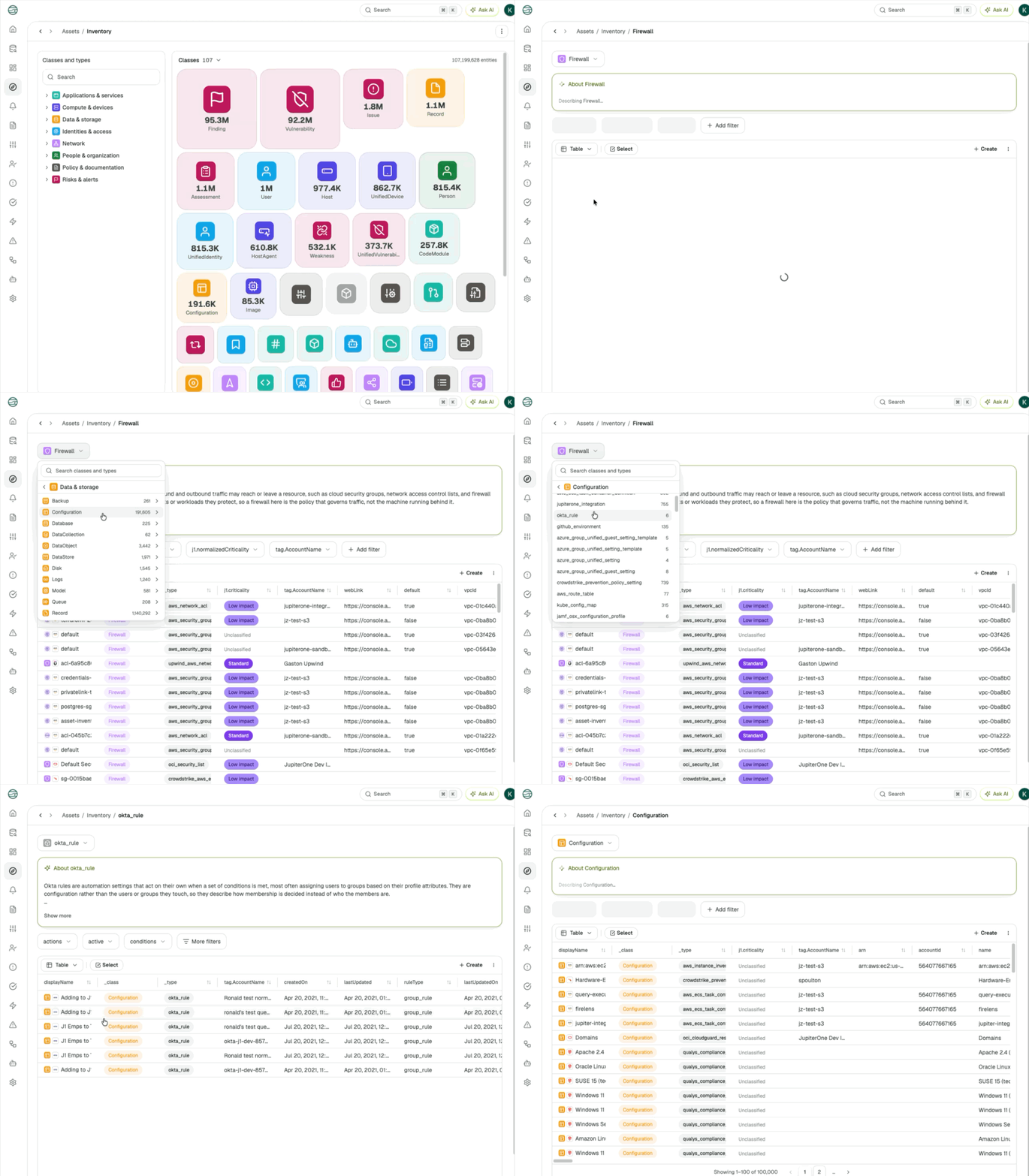
With JupiterOne AI, each class and type page starts with an About card: a short description of what that class or type holds in your account.
Hover cards
Hover an item to see what it is, without leaving the page. Anything underlined in a card is a link.
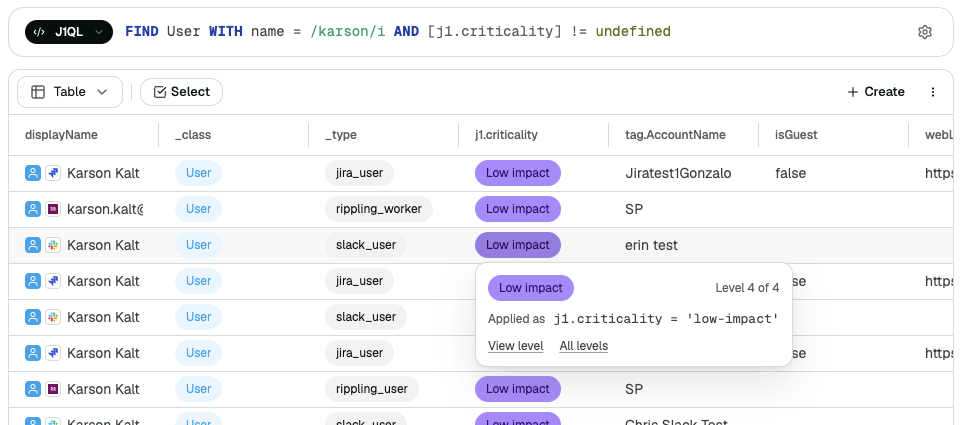
| Hover | The card shows |
|---|---|
| A class or type | Its category and how many assets it has, with a link to it in assets inventory |
| An asset's icon | The asset's name, classes and type, the integrations it came from, and when it was created and updated |
| An integration icon | The integration, with a link to it |
| A criticality level | Where the level sits among your levels, and how to use it in a query |
Column sorting
Select a column header in assets inventory or in search results to sort by that column. Select it again to reverse the order, and a third time to clear it.
Sorting covers all of your results, not only the rows on screen. On the search page, it adds ORDER BY to your query. Sorting is not available for a query that follows a relationship or uses RETURN or LIMIT.
Act
A query result is often the start of something: an alert, a question to keep, a number for a dashboard. Now you can create it from the result.
Select Create on the results toolbar, and choose what to make:
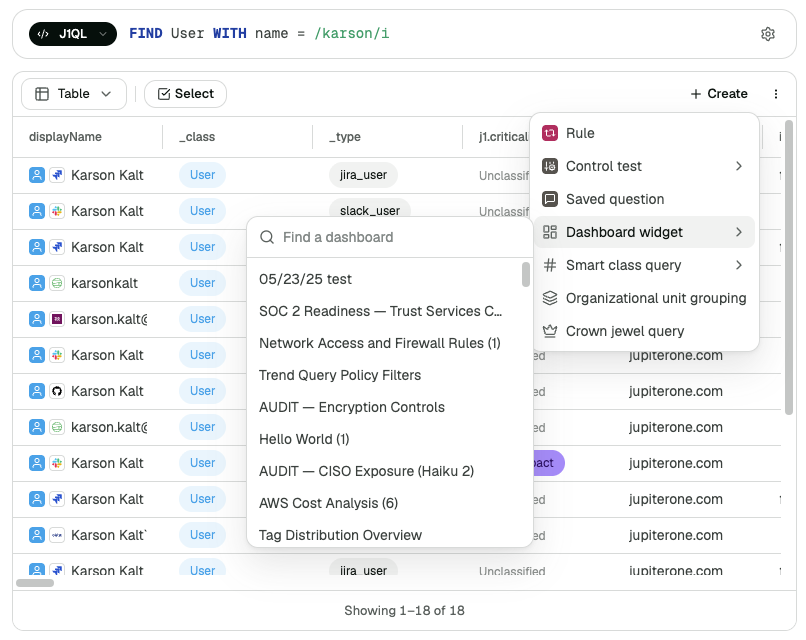
| Choose | What opens |
|---|---|
| Rule | A new rule with your query filled in |
| Saved question | A new question with your query filled in |
| Dashboard widget | Choose a dashboard, and a new widget opens with your query |
| Control test | Choose a control, and a new control test opens with your query |
| Smart class query | Choose a smart class, and your query is added to it |
The form opens with your query in place, and nothing is saved until you save it. You see the items your permissions and your account's features allow.
Create is available wherever query results show, including search, assets inventory and a rule's results. On a dashboard, open a widget's menu and select Create to start from that widget's query.
Track
One time range for the whole dashboard
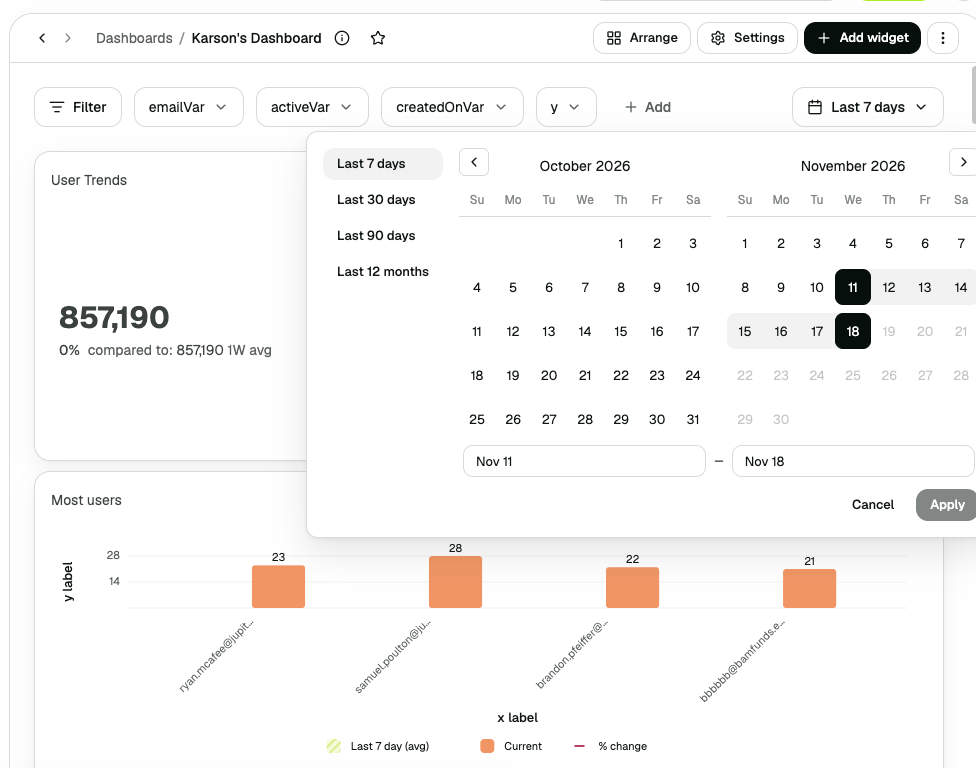
A dashboard with trend widgets now has one time range, in the dashboard's filter bar. Choose Last 7 days, Last 30 days, Last 90 days, Last 12 months or a custom range, and every trend widget follows. Changing the range on one widget changes it for the whole dashboard, so your charts always cover the same period.
The time range is part of the page's link, so a link you share opens on the same period.
Sparklines on number widgets
A number widget that tracks a trend now shows a sparkline under its value, with one point for each day in the time range. Hover a point to see that day's value.
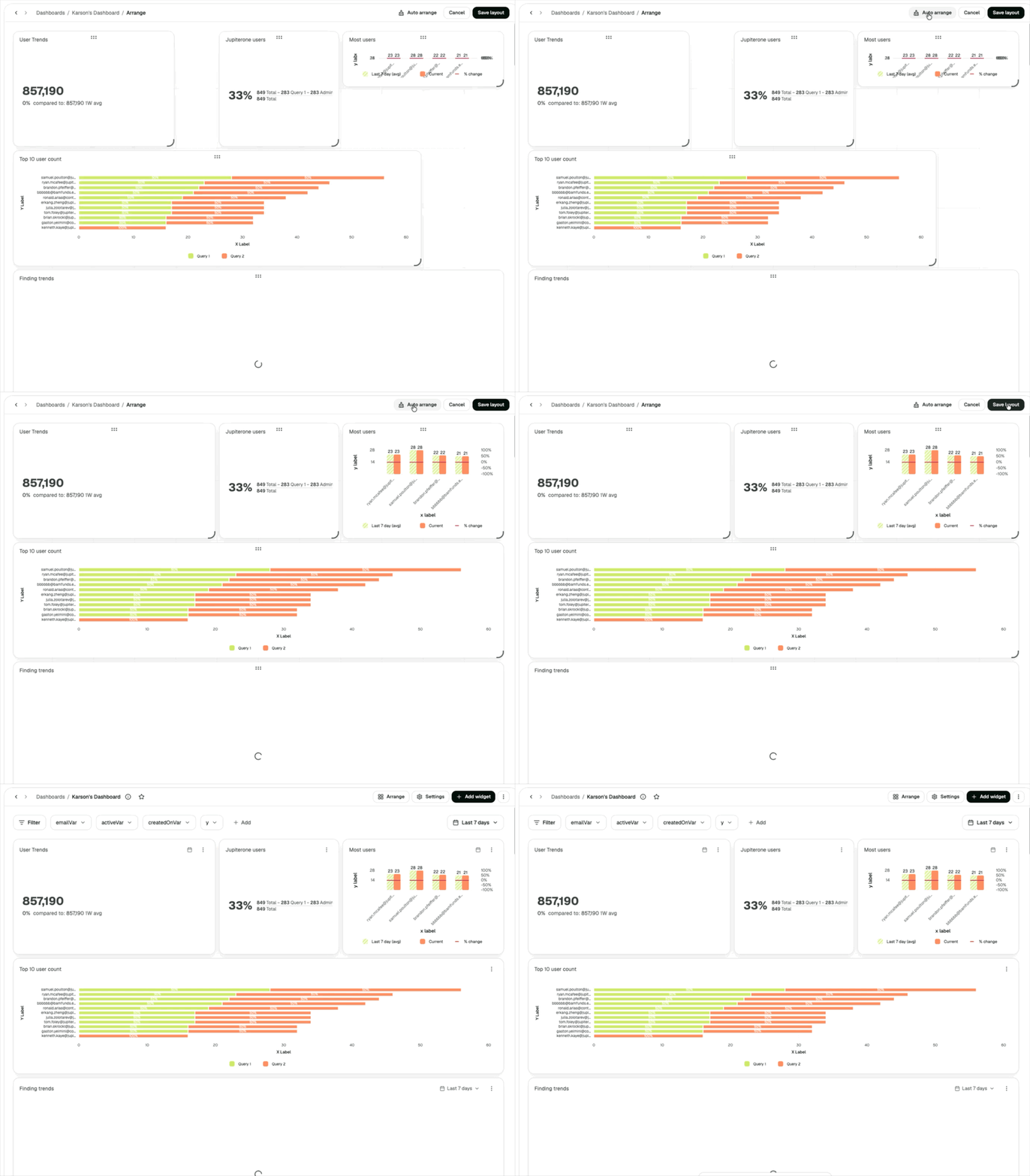
Auto arrange
Select Arrange on a dashboard, then Auto arrange to tidy the layout and close the gaps. Move or resize anything you like, then select Save layout.
Describe your dashboard
With JupiterOne AI, Create dashboard starts with a Describe your dashboard box. Describe what you want to see, and the AI assistant builds a dashboard for you to preview. Select Save dashboard to keep it. You can still start with a blank dashboard.
Also in dashboards
- Smooth lines on line widgets
- Show row and column counts on matrix widgets
- Try again on a widget that fails to load
Everywhere
Account menu
Select your avatar at the top of any page.
| Item | What it does |
|---|---|
| Notifications | Your notifications, with the number unread |
| Account and User group | Switch accounts or user groups |
| Theme | Light, Dark or System |
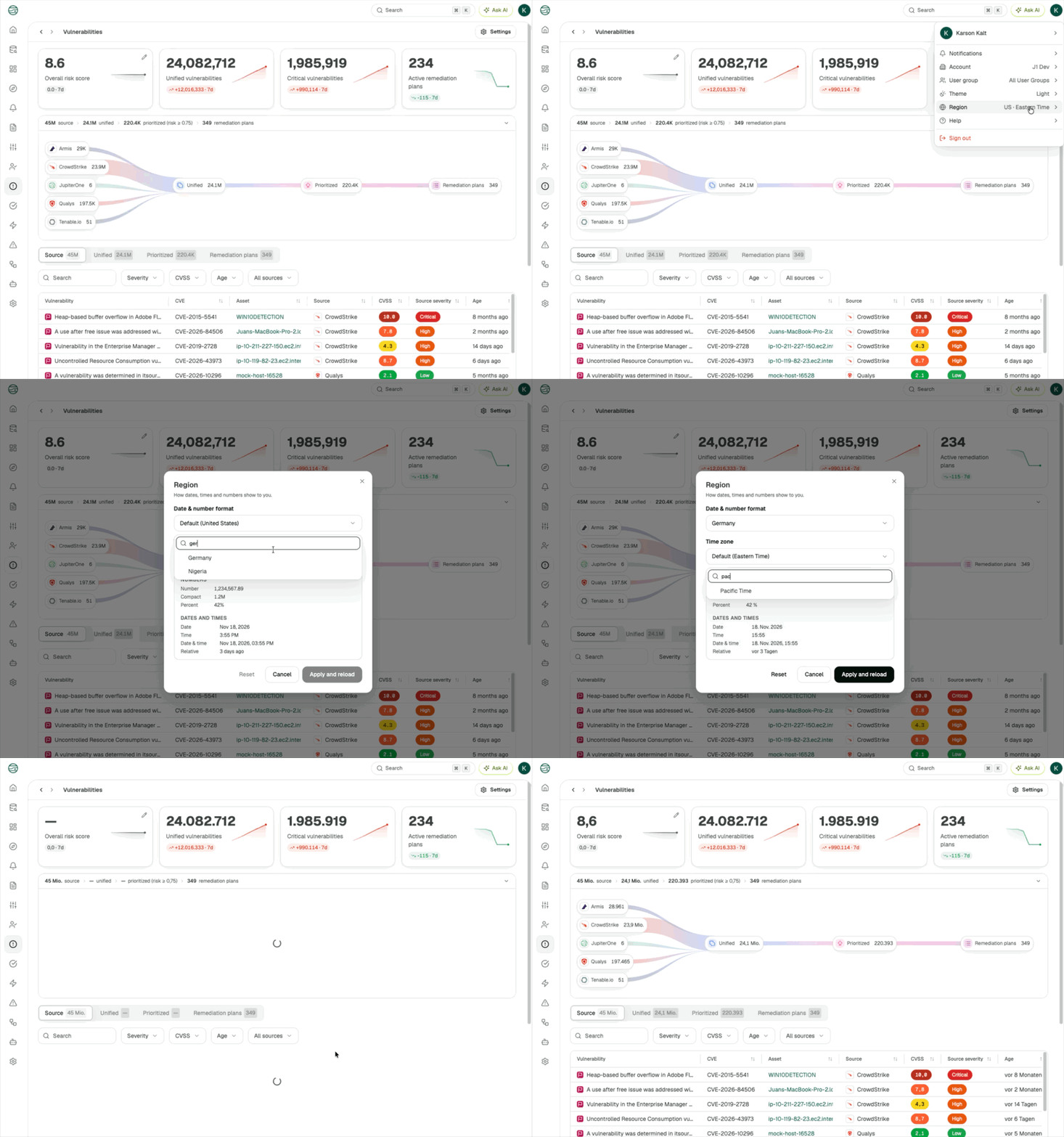
| Region | How dates, times and numbers show to you: the date and number format, and your time zone |
| Help | Documentation, the status board, support and the community |
| Sign out | Signs you out |
Region replaces the Preferences page in settings. Select Apply and reload to use your changes.
One date range picker
Date ranges use the same presets and calendar on every page: Last 7 days, Last 30 days, Last 90 days, Last 12 months, or a custom range. Nothing changes until you select Apply.
Clearer errors
- Query results. When results fail to load, the message shows in place of the results with Try again. When a refresh or the next page fails, the rows you already have stay on screen.
- Timeouts. A query that times out suggests how to narrow it, such as adding a filter or a
LIMIT. - Fewer pop-ups. A widget or card that fails shows its message where it sits, not in a pop-up.
- Buttons say why. A button you cannot use yet tells you what to do first.
Getting started
- Go to Assets > Inventory and select a class on the heatmap
- Add a filter to narrow the results
- Select Create on the results to make a rule or a saved question from them
- Open a dashboard, and change its time range
For what is new in the AI assistant, see What's new in Assistant 0.7. For the search palette and resizable panels, see What's new in the JupiterOne app.