Assistant 0.7 Release Notes
Release date: November 2026
Assistant 0.7 knows you and your account. It builds a home page around your goals, remembers how you work, and goes from answering to helping you act: it creates rules, dashboards, saved questions and controls for you to review, fills the form you have open, and creates Jira tickets. Nothing in JupiterOne is saved until you save it.
No. Select Ask AI at the top of any page to start. The first time you open Home, a short setup asks what you work on. To create Jira tickets, connect your Jira account once in the assistant's settings.
What is new in Assistant 0.7
| Capability | What it means for you |
|---|---|
| Personalized home | A home page built around your focus areas and goals, which tells you when a goal needs you |
| Memories | The assistant remembers your role, your scope and how you like answers, and you can see, edit or forget each memory |
| Creates things for you to review | Ask for a rule, dashboard, saved question, control or control test, and it opens ready to review and save |
| Fills the form you have open | On a create or edit form, ask the assistant to fill it in. It leaves the fields you changed alone, and it never saves |
| Follow-ups | Each answer ends with up to three suggested next steps |
| Sources for what it knows about you | Answers cite your account, your goals and your memories next to your data and the docs, so you can tell where each statement comes from |
| Jira tickets | Connect your own Jira account, and the assistant creates and updates tickets about what it found |
| More to ask about | Which devices a CVE affects, where a compliance framework is failing, and changes to asset criticality |
Personalized home
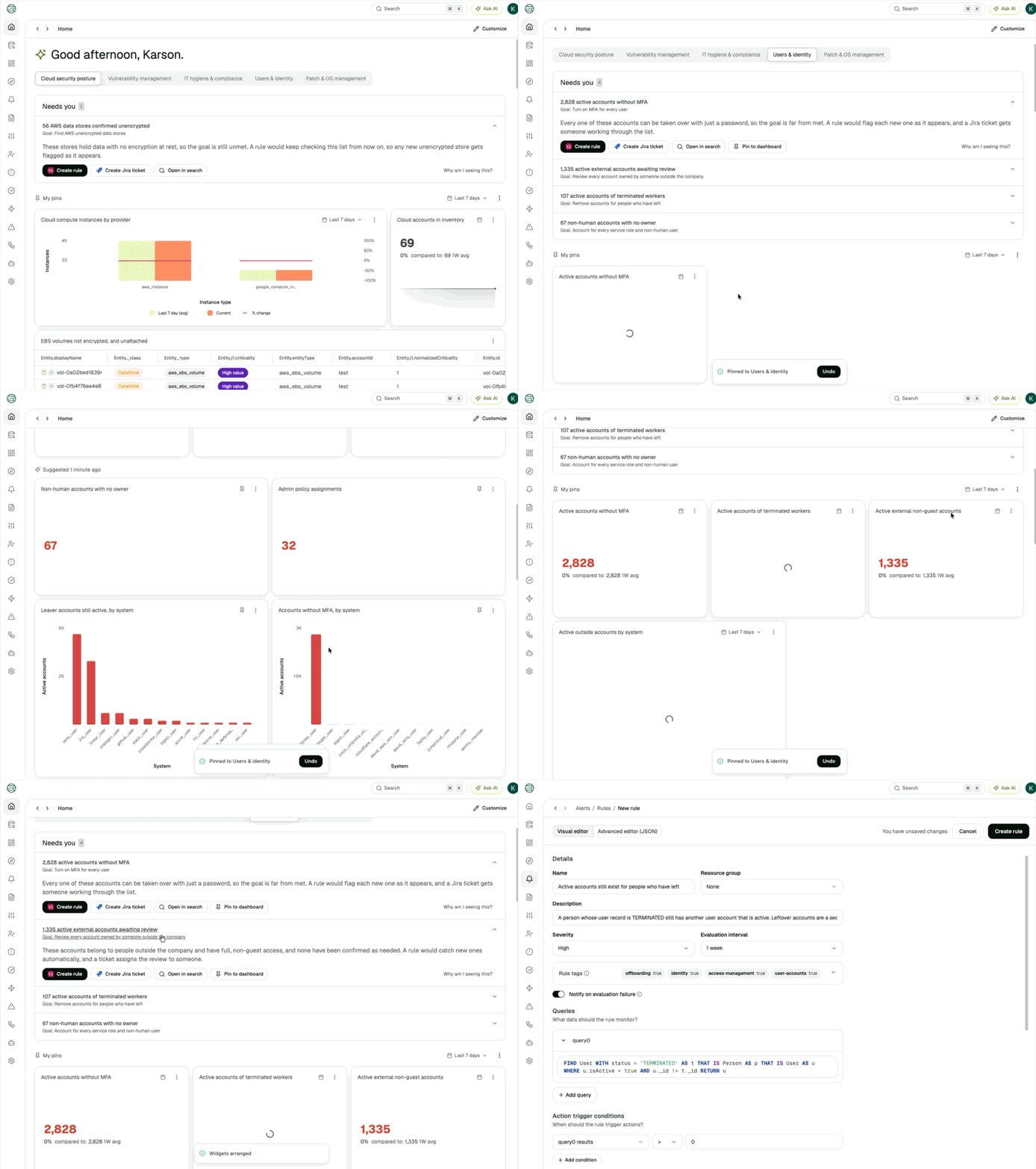
Home is now built around what you work on. You pick focus areas, such as vulnerability management or users and identity, and the goals you want to reach in each. The assistant builds a page for each focus area with three parts:
- Needs you: the goals that need your attention now, each with a short explanation and actions to take
- My pins: the widgets you chose to keep, with a daily trend
- Suggested for you: widgets the assistant suggests for your goals
See Personalized home for the setup and each part of the page.
Memories
The assistant remembers what you tell it about how you work, and reads it every time you ask something. It saves a memory when you ask it to remember something, and when you correct what you meant.
- "Remember that by users I mean employees, not service accounts."
- "I look after our AWS production accounts."
- "Forget that."
When the assistant saves a memory, the step Updated what I remember shows in the conversation. An answer that rests on a memory cites it as Your memory.
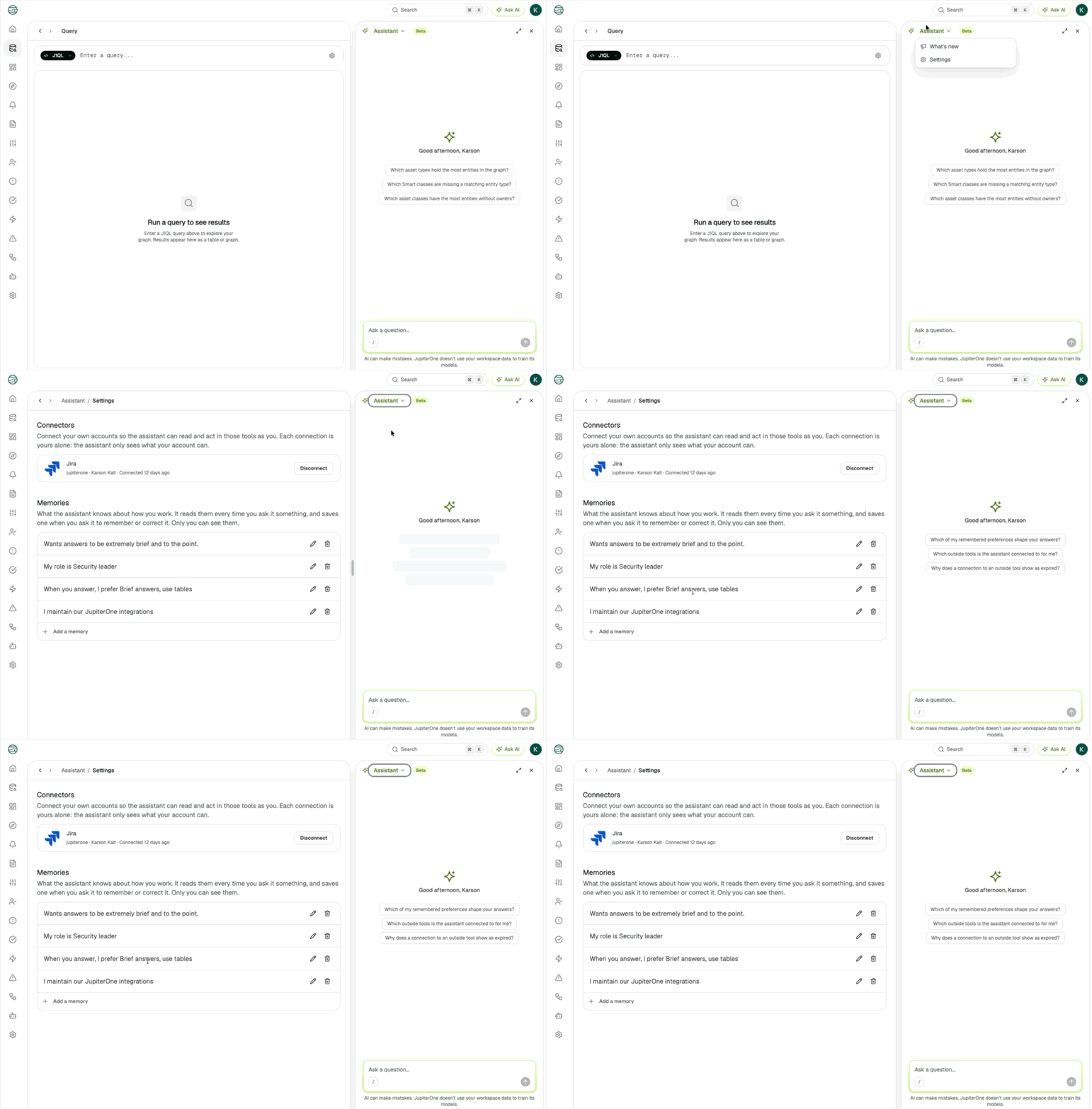
Only you can see your memories. To manage them, open the menu in the assistant's header and select Settings:
- Memories lists what the assistant remembers. Edit or forget any memory, or type a new one under Add a memory.
- You can keep up to 30 memories.
The first time you set up Home, Tell us about you asks for your role, what you look after and how you like answers. Each answer is saved as a memory.
Creates things for you to review
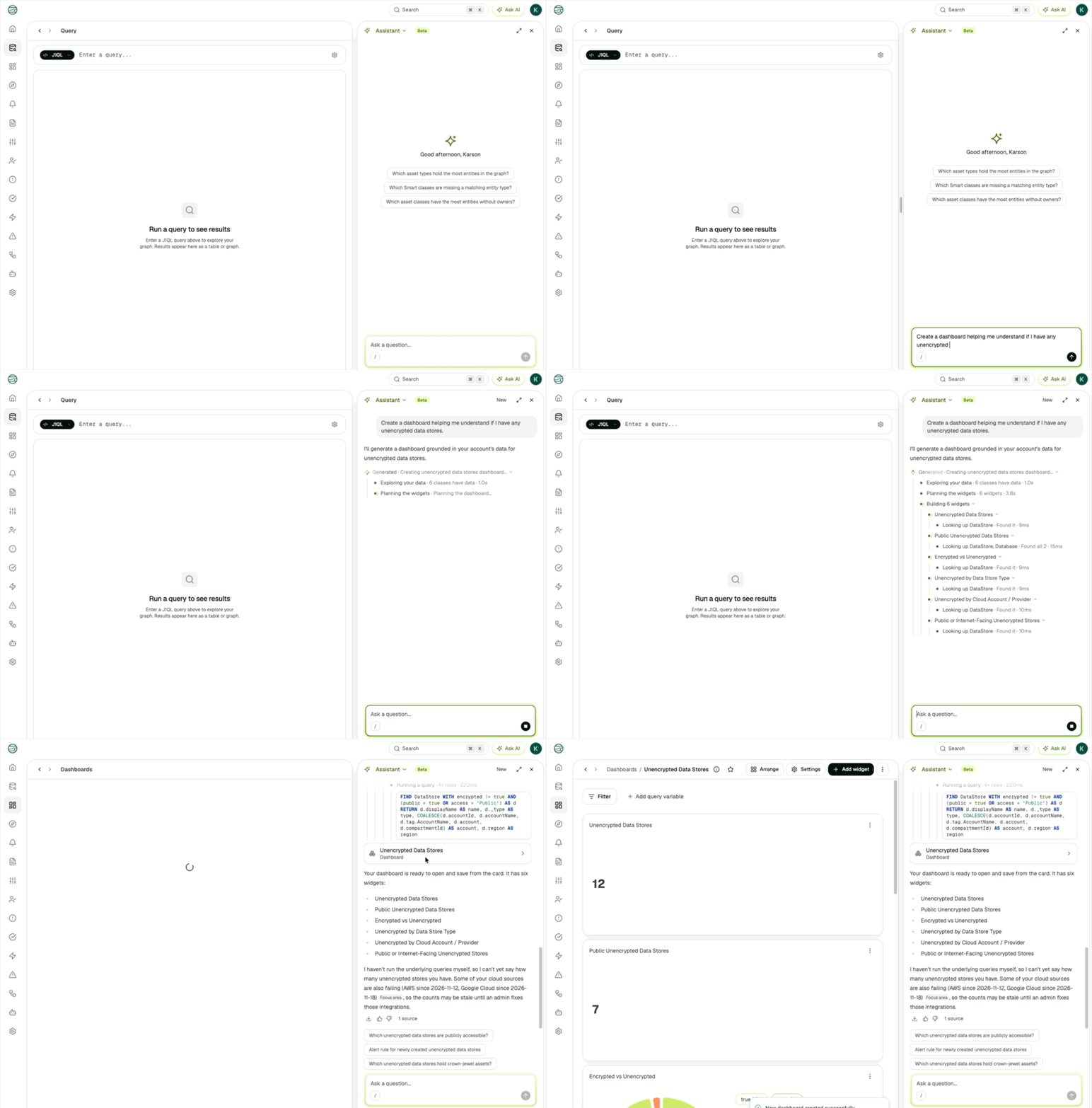
Ask the assistant to make something, and the answer includes a card for it. Select the card to open what it made.
| Ask for | What opens |
|---|---|
| A dashboard | A full-screen preview. Select Save dashboard to keep it |
| A rule | The rule editor, filled in and unsaved |
| A saved question | The question form, filled in and unsaved |
| A control or control test | The control form, filled in and unsaved. For a control test, you first choose the control it belongs to |
| A query | The query and its results |
- "Make a rule that alerts when a production host has no agent."
- "Build a dashboard for our vulnerability SLA."
- "Save that as a question."
The assistant never saves what it makes. You review it in the same form you would use to create it yourself, and save it there. It creates only what your account lets you create.
You can also start from the app:
- When you create a dashboard in Insights, a Describe your dashboard box lets you describe what you want to see. You can still start with a blank dashboard.
- Draft with AI on a new control fills in the fields you left empty.
Fills the form you have open
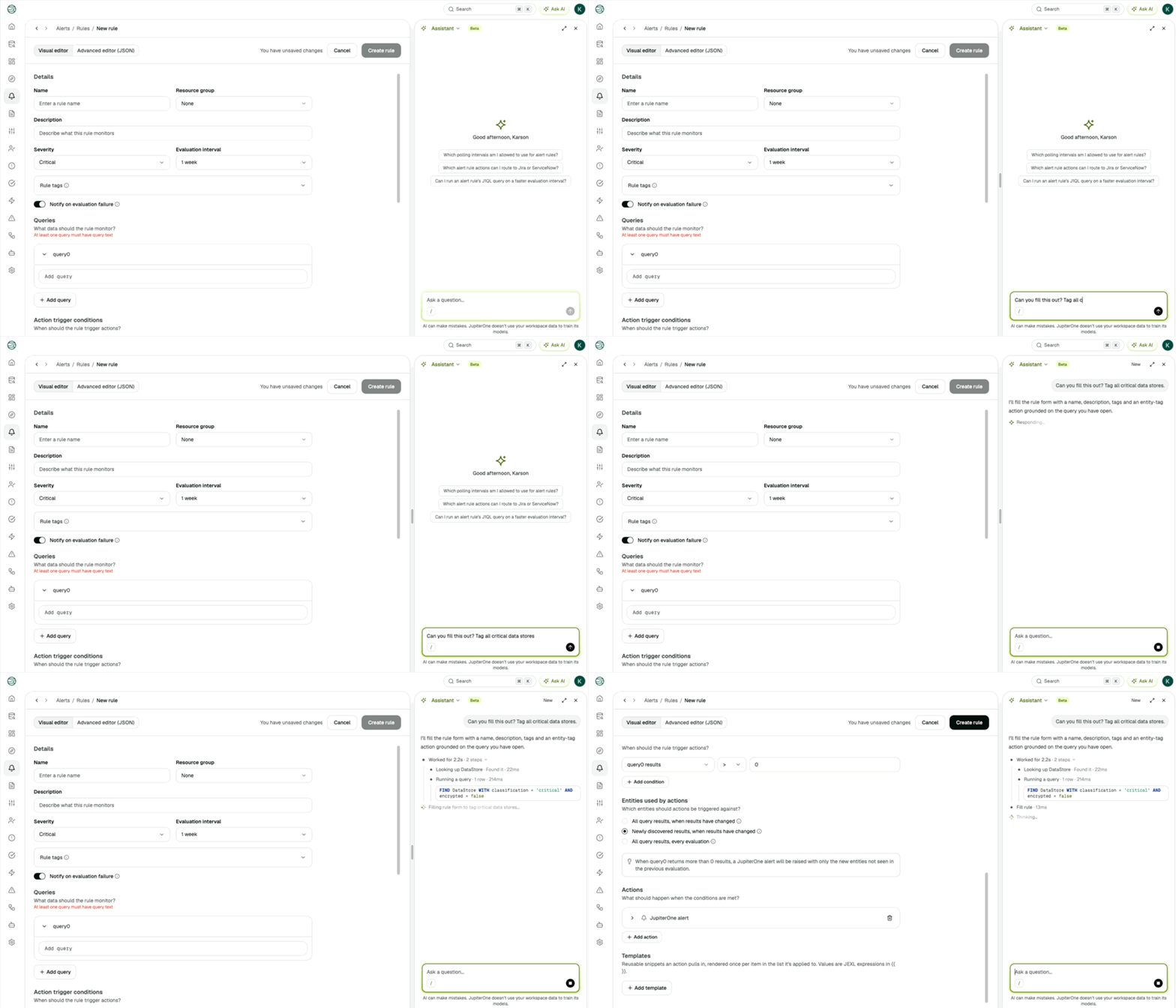
With a create or edit form open, ask the assistant to fill it in. It can see the form's fields, what you already entered, and any errors.
- "Fill this in for S3 buckets that are public."
- "Write the query for this control test."
- "Fix the error on this form."
When you ask for a fill, the assistant applies it and shows a line such as Fill rule. When the fill is the assistant's own suggestion, it shows a button and waits for you to select it. The assistant leaves fields you changed alone unless you ask it to change them, and it never saves the form.
Forms it can fill include rules, saved questions, controls, control tests, frameworks and requirements, dashboard details, dashboard widgets and variables, smart classes, and access review programs.
Follow-ups
Under each answer, the assistant suggests up to three next steps. Select one to send it. Some ask a further question, and some make something from the answer, such as a dashboard. The suggestions clear when you start typing your own message.
Sources for what it knows about you
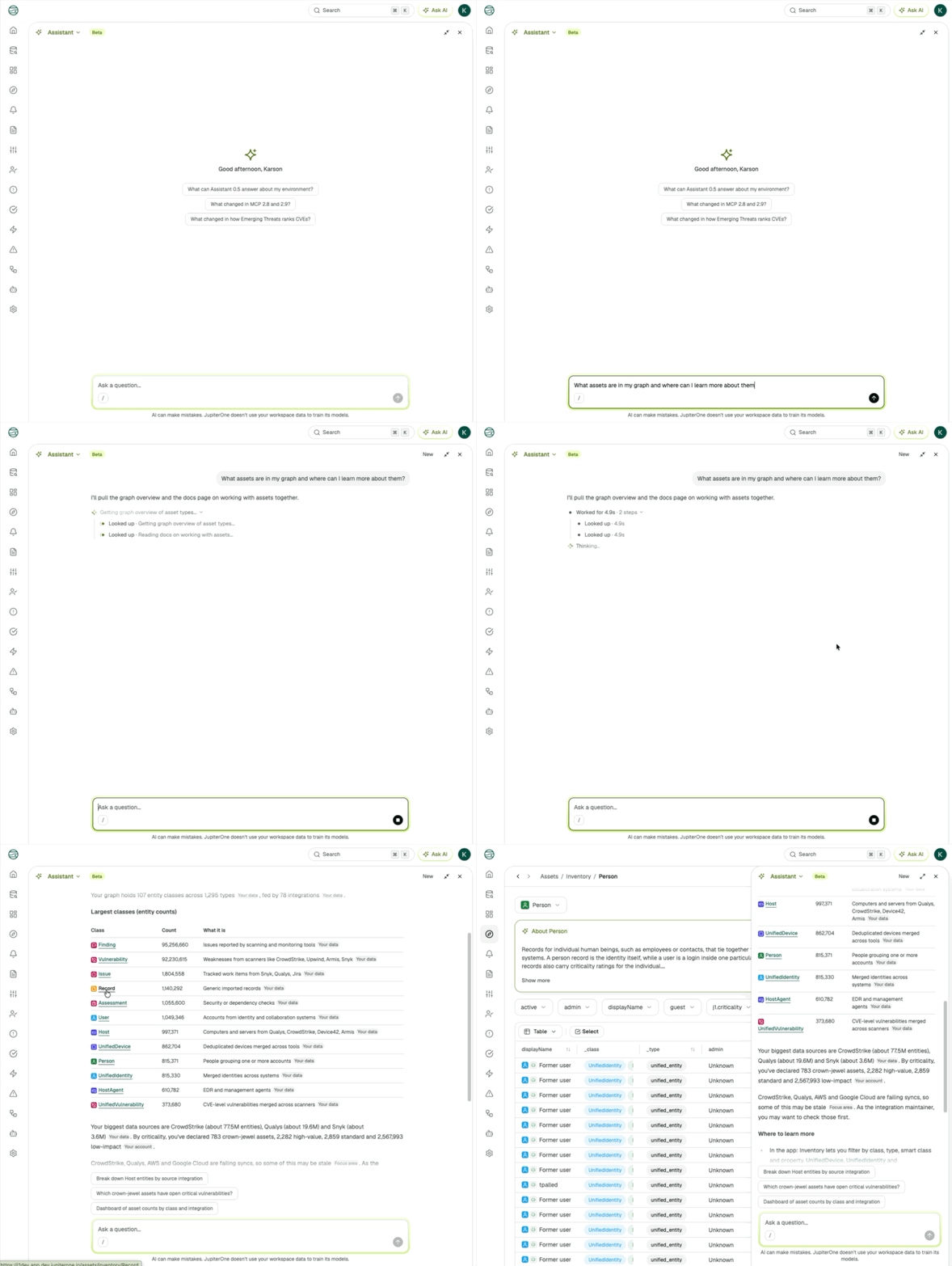
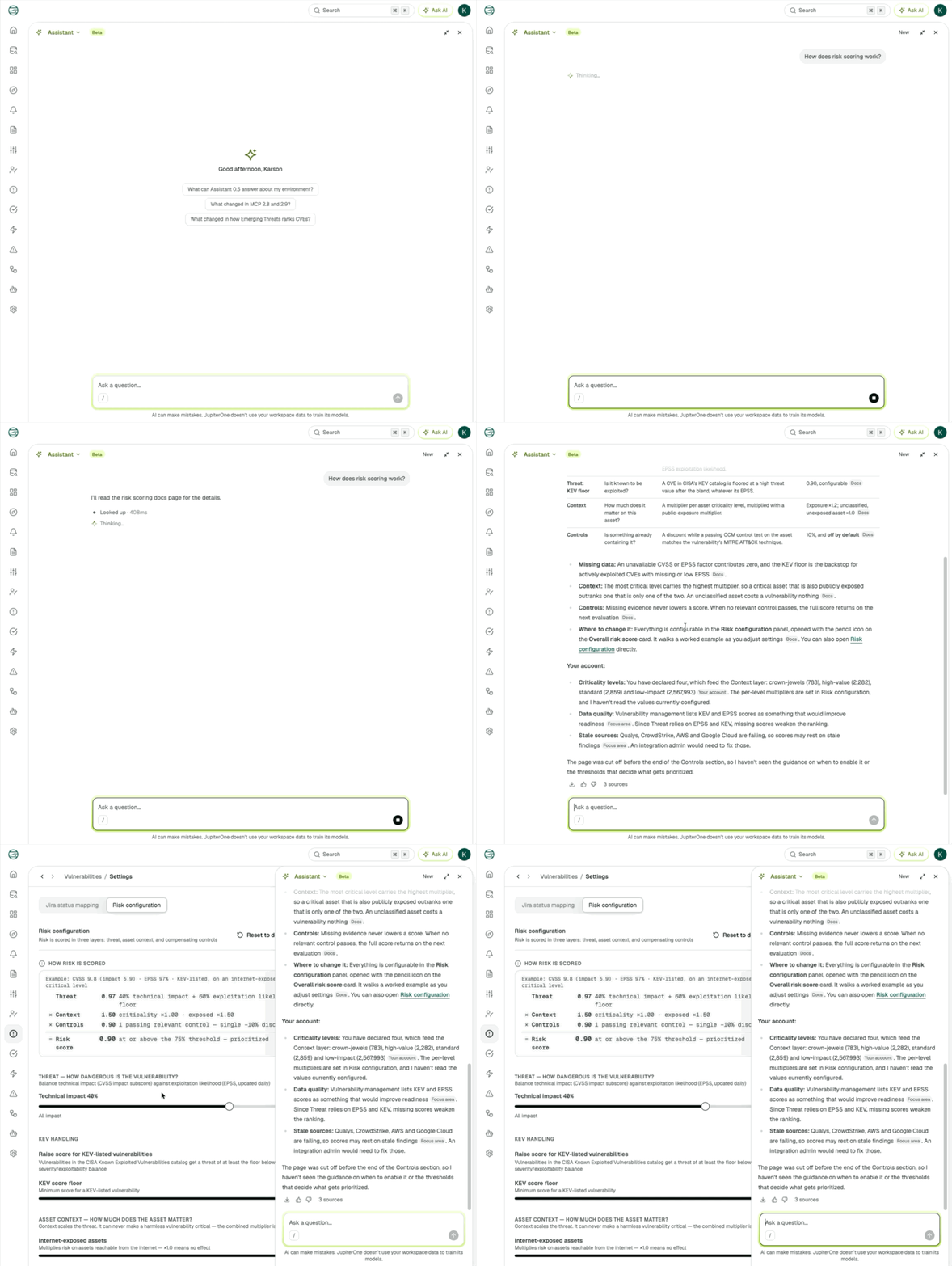
Every answer still lists its sources under N sources, and a small label marks each statement with where it comes from. Assistant 0.7 knows more than your graph, so it has more to cite. These labels are new:
| Label | What it means |
|---|---|
| Your account | Something the assistant knows about your account as a whole |
| Focus area | One of the focus areas on your home |
| Your goal | A goal you chose for your home |
| Your memory | A memory you saved. Select it to open your memories in the assistant's settings |
| Your profile | Something from your JupiterOne profile. Select it to open your profile |
| You | Something else the assistant knows about you |
| Your activity | What you have done in JupiterOne recently |
They sit beside the labels from Assistant 0.5: Your data, Query, Docs, JupiterOne and On screen. When an answer says "your goal is to turn on MFA for every user", you can see that it came from a goal you chose, not from your graph.
Jira tickets
The assistant can work in Jira as you. It can search for issues, read them, and create or update tickets about the assets in an answer.
To connect Jira:
- Open the menu in the assistant's header and select Settings
- Under Connectors, select Connect next to Jira
- Sign in to Atlassian and choose your Jira site
Then ask:
- "Create a Jira ticket for these five hosts in the SEC project."
- "Is there already a ticket for this bucket?"
Before it creates or updates anything, the assistant shows you exactly what it will write and waits for you to confirm in the conversation. A ticket it creates is linked to the assets it is about, so you can find it from them later.
The connection is yours alone. The assistant sees and changes only what your Jira account can, and it cannot change a ticket's status. For control and control test tickets, use Create ticket in Compliance. For vulnerabilities, use remediation plans.
More to ask about
- Which devices a CVE affects. Ask about a CVE, and the assistant lists your affected devices and says how sure each match is: confirmed, probable or possible.
- Where a framework is failing. On a framework page, select Ask AI for a short briefing on where failing control tests concentrate and where to start.
- Asset criticality. Asset administrators can select Ask for changes on the asset criticality page and tell the assistant what to change. Nothing is applied until you approve it.
What the assistant does not do
- It does not save in JupiterOne for you. Everything it makes opens unsaved, and you save it.
- It does not change your assets. It cannot tag, assign, edit or delete assets, or change settings.
- It sees what you see. The assistant works with your permissions in JupiterOne, and with your own account in Jira.
Also in this release
- Settings. The assistant's header menu has Settings, with Connectors and Memories.
- What's new. The same menu has What's new, which asks the assistant what changed in JupiterOne.
Getting started
- Select Home and follow the setup to pick your focus areas and goals
- On a Needs you row, select Why am I seeing this? to have the assistant explain it
- Ask the assistant to make a rule or a dashboard from an answer, then review and save it
- Open Settings from the assistant's header menu to connect Jira and review your memories
For what came before, see What's new in Assistant 0.5. For the full list of JupiterOne AI capabilities, see JupiterOne AI capabilities.