Personalized home
Release date: November 2026
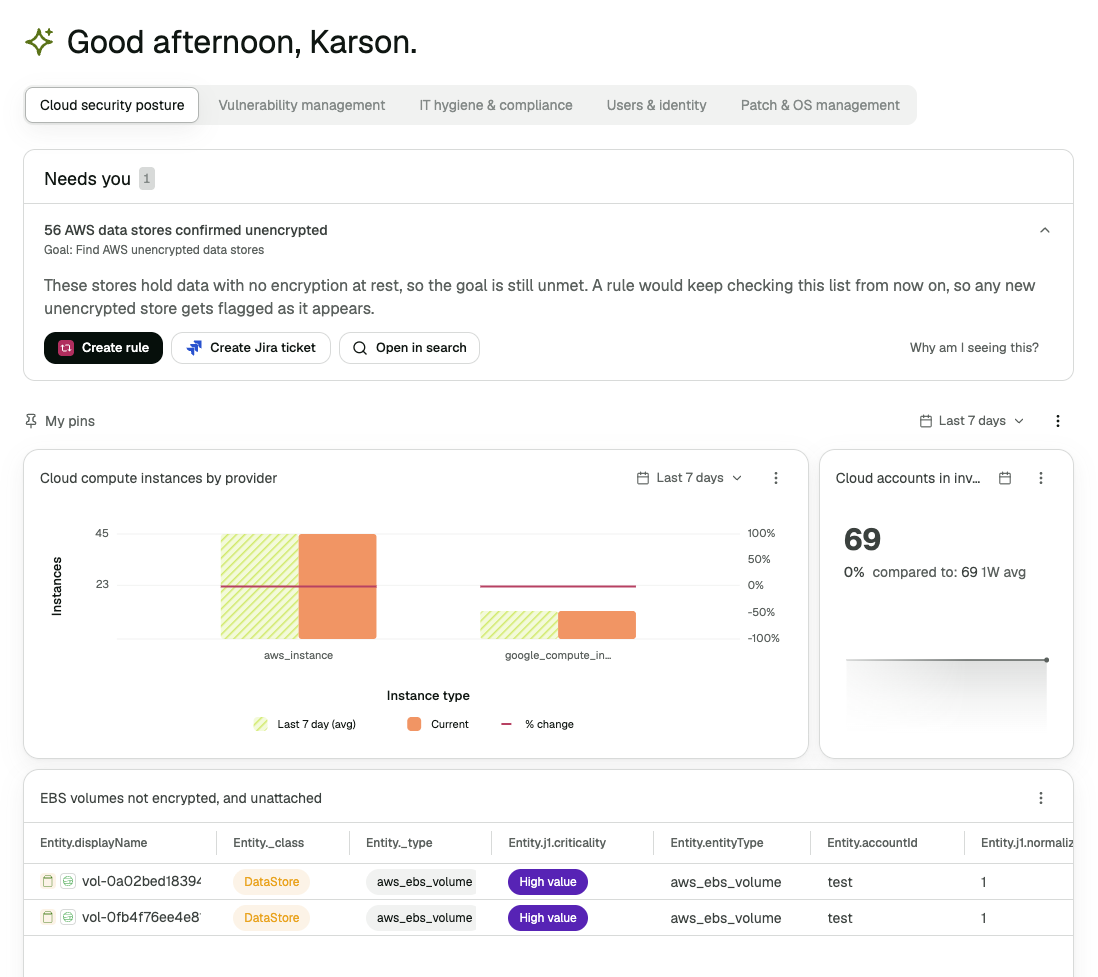
Home is built around what you work on. You pick your focus areas and the goals you want to reach in each, and the AI assistant builds a page for each one. Each page tells you which goals need you now, suggests widgets that measure them, and keeps the widgets you pin.
Your home is yours. Your focus areas, goals and pins are saved for you, and other people in your account set up their own.
Personalized home needs JupiterOne AI and Assistant 0.7. See What's new in Assistant 0.7.
Set up your home
The first time you open Home, a short setup starts. Select Get started.
Tell us about you
Everything here is optional. The assistant saves each answer as a memory and reads it every time you ask it something. Only you can see it.
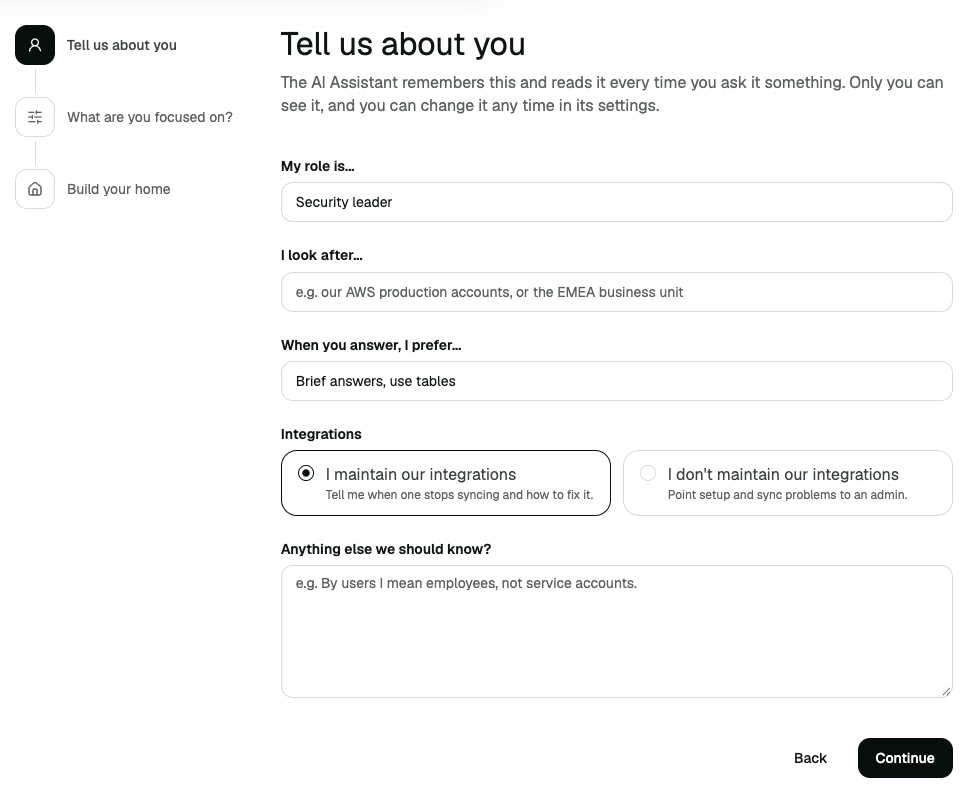
| Field | What to enter |
|---|---|
| My role is... | Your role, such as security engineer, SOC analyst or compliance lead |
| I look after... | Your scope, such as "our AWS production accounts" or "the EMEA business unit" |
| When you answer, I prefer... | How you like answers: short answers, detailed explanations, tables, or the query shown with every answer |
| Integrations | Whether you maintain your account's integrations. If you do, the assistant tells you when one stops syncing and how to fix it |
| Anything else we should know? | Anything else, such as "By users I mean employees, not service accounts" |
You can change these later in the assistant's settings, under Memories.
What are you focused on?
Pick at least one focus area, and at least one goal in each. Each focus area becomes a tab on your home.
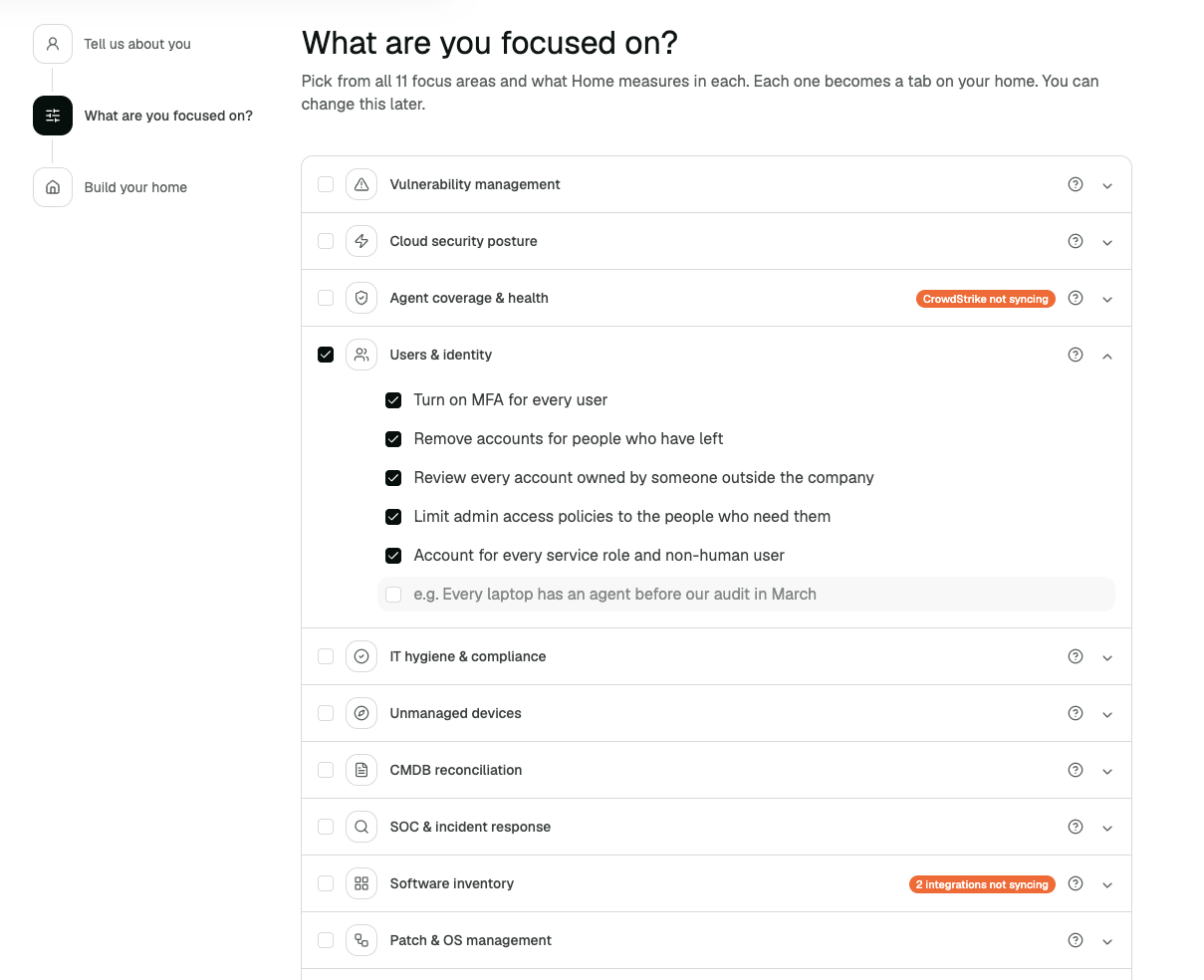
| Focus area |
|---|
| Vulnerability management |
| Cloud security posture |
| Agent coverage & health |
| Users & identity |
| IT hygiene & compliance |
| Unmanaged devices |
| CMDB reconciliation |
| SOC & incident response |
| Software inventory |
| Patch & OS management |
| Emerging threats |
| Custom, for goals that fit none of the above |
Expand a focus area to see its goals, such as "Close critical vulnerabilities before they are 15 days old" or "Turn on MFA for every user". Select the goals you want, or select Add your own goal and write one in your own words.
A focus area may show Almost ready or Can't show yet when your account is missing data it needs. Expand it to see what is missing. Select Connect to add the integration, or ask your administrator if you do not have permission.
To have the assistant help, select Help me write my own goals and describe what you want to track. The assistant places each goal under the focus area that measures it. It fills in the setup for you to review, and nothing is saved until you save it.
Select Build my home.
Build your home
The assistant builds a page for each focus area, and each one reads Ready when it is done. Select Open my home.
Your home page
Home greets you by name and shows one tab for each focus area. Each tab has up to three sections.
Needs you
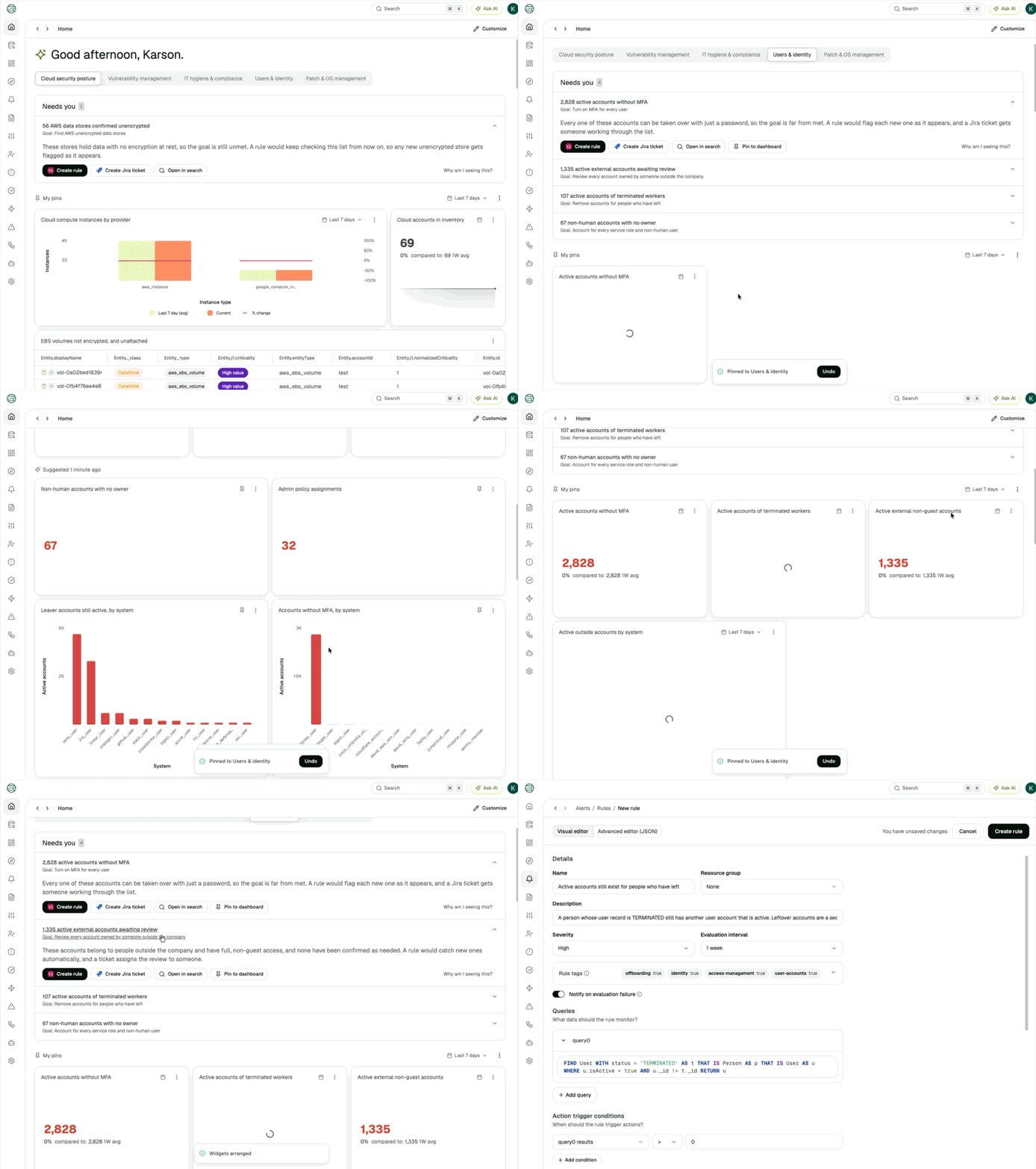
Needs you lists the goals that need your attention now. Each row has a headline with the number that matters, the goal it belongs to, and a short explanation.
A goal is left out when nothing needs doing, or when a rule or control test already watches it.
On each row you can:
| Action | What it does |
|---|---|
| Create rule or Create control test | Opens the form filled in and unsaved, so you can review and save it and be alerted from then on |
| Create Jira ticket | Asks the assistant to create a ticket, which it shows you before it creates. Appears when you have connected Jira |
| Open in search | Opens the assets behind the number as query results |
| Pin to dashboard | Pins the number to My pins so you can watch it over time |
| Why am I seeing this? | Asks the assistant what the number counts, what is already in place, and what to do next |
Needs you also tells you when the page itself cannot be trusted yet:
- Missing data. When a focus area needs data your account does not have, the row names it and offers a button to connect it. Until then, the page's numbers cannot be complete.
- Not syncing. When an integration the page relies on has stopped syncing, the row says since when and offers a button to fix it. Until it syncs again, the numbers may be out of date.
If you do not have permission to manage integrations, the row asks you to contact an administrator.
When everything is in hand, the section reads Nothing needs your attention right now.
My pins
My pins holds the widgets you chose to keep. It appears after your first pin.
- Trends. A pinned widget keeps a daily trend from the day you pin it, and number widgets show it as a sparkline. Choose how far back to look: Last 7 days, Last 30 days, Last 90 days or Last 12 months.
- Arrange. Open the section's menu and select Auto arrange widgets, or select Edit dashboard to arrange them by hand.
- Unpin. Open a widget's menu and select Unpin.
Your pins are saved as a dashboard of your own, so you can also open and edit it in Insights.
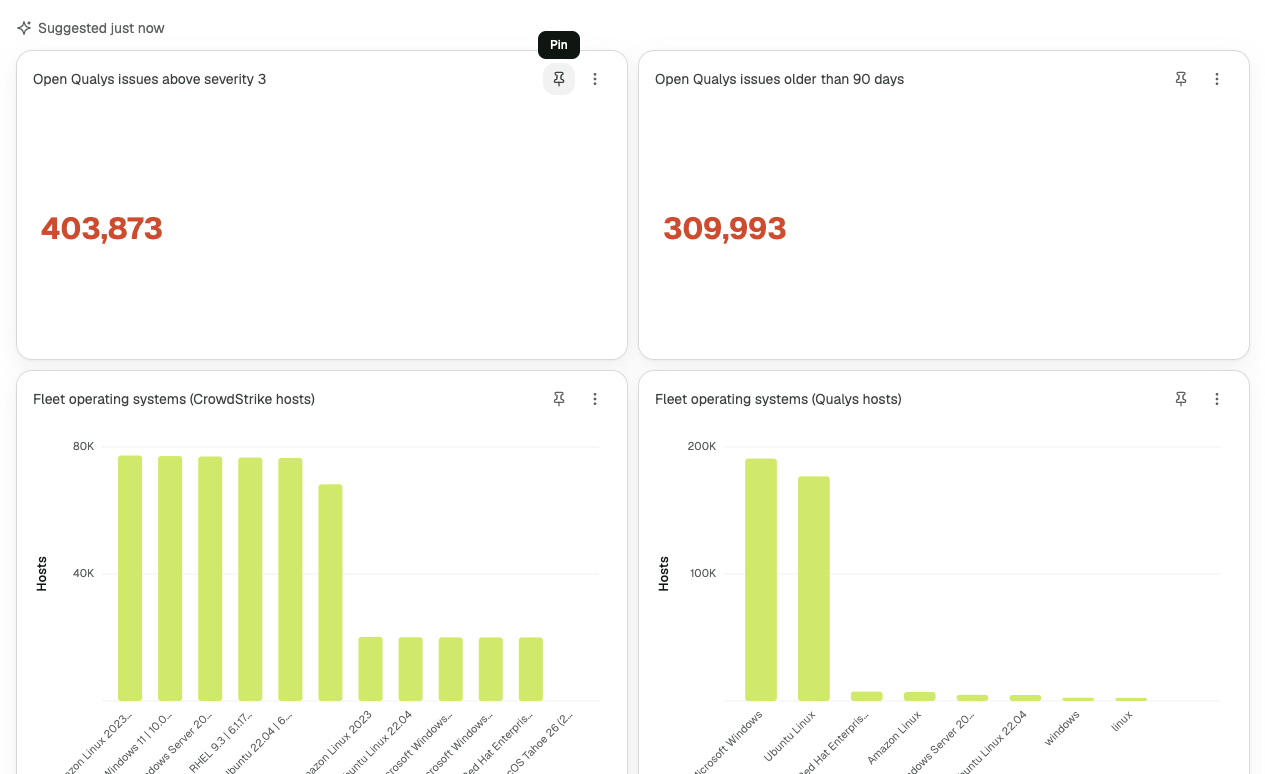
Suggested for you
Suggested for you shows widgets the assistant suggests for your goals, from the data in your account. The label shows when the suggestions were made. The assistant refreshes them over time and when you change your goals.
Select the pin on a widget to move it to My pins. Open a widget's menu to see its query, or to create something from it.
Change your home
Select Customize at the top of Home to add or remove focus areas and goals, then select Save. The assistant updates your pages for the new goals.
To change what you told the assistant about yourself, open the menu in the assistant's header, select Settings, and edit your Memories.
Ask the assistant from home
Select Ask AI at the top of the page to ask about anything on your home. The assistant knows which focus area you have open and what your goals are.
- "Which of my goals should I work on first?"
- "Why are these hosts missing an agent?"
- "Make a rule for this."