Configure a ServiceNow connection
A Connection is the credential set Data Out uses to talk to your ServiceNow instance. Before you can create instances or fire Create ticket from CCM, you need at least one Connected ServiceNow connection.
ServiceNow connections authenticate with the username and password of a ServiceNow service account (basic authentication). OAuth is not supported yet. You will:
- Prepare a ServiceNow service account with the access Data Out needs
- Open the Data Out Connections tab and start a new ServiceNow connection
- Walk through the Connect and Verify steps in the wizard
- (Create flow only) continue into Configure and Test to stand up your first instance
This page covers ServiceNow. To connect Jira instead, see Configure a Jira connection. You can have both providers connected in the same JupiterOne workspace.
Prerequisite: prepare a ServiceNow service account
JupiterOne stores the credentials you enter in the wizard so Data Out can create incidents on your behalf. Use a dedicated integration account rather than a named employee's account, so the connection keeps working when people change roles.
Find your instance subdomain
The wizard asks for your instance Subdomain, which is the part of your ServiceNow URL before .service-now.com. For example, if you sign in at https://acme.service-now.com, the subdomain is acme.
Grant the account the access it needs
Create (or choose) a ServiceNow user for JupiterOne and give it roles with access to the following tables. Your ServiceNow administrator controls these settings in ServiceNow, not in JupiterOne.
| Table | Access | Why Data Out needs it |
|---|---|---|
Tables (sys_db_object) | Read | Lets JupiterOne list the tables in your instance. The Verify step uses this to prove the credentials work. |
Dictionary entry (sys_dictionary) | Read | Lets JupiterOne read the column definitions of the table it writes to. |
Incident (incident) | Read, create, and write | Data Out creates incidents, and reads incident updates so JupiterOne can mirror whether an incident is still open. |
Some ServiceNow base-system roles already include this access. For example, the itil role covers standard incident handling, and admin includes everything. If you prefer least privilege, ask a user with the security_admin role to create a custom role with just the access in the table above - only security_admin users can create or edit access control rules in ServiceNow.
Check your instance's authentication settings
- Password reset flag - make sure Password needs reset is not selected on the service account. If it is, ServiceNow rejects the credentials with a
401error even though the password is correct. - Basic authentication restrictions - if your instance restricts basic authentication for API calls, the account must be allowed to use it. ServiceNow recommends a Web service access only account, or an account with the
snc_basic_auth_api_accessrole. See the ServiceNow documentation on Basic authentication restriction. - Interactive sign-in requirements - because JupiterOne signs in with a stored username and password, the account cannot depend on an interactive step such as multi-factor authentication or single sign-on.
- Password expiry - if your policy rotates service-account passwords, set a calendar reminder to update the connection before the old password expires. See Re-authorize a connection for the recovery flow.
Open the Connection wizard
-
In the JupiterOne left navigation, open Integrations > Data out
-
The default tab is Connections
-
Find the ServiceNow card and click Connect (or View -> if you already have at least one ServiceNow connection)
The card shows an Available badge until you connect, and Connected afterwards.
-
The ServiceNow provider page opens. Click + Add a new ServiceNow connection (top-right) to open the wizard
If you do not have any ServiceNow connections yet, clicking Connect on the card opens the wizard directly.
Step 1 - Connect
The Connect step captures four fields. You will enter the service account's credentials in the last three.
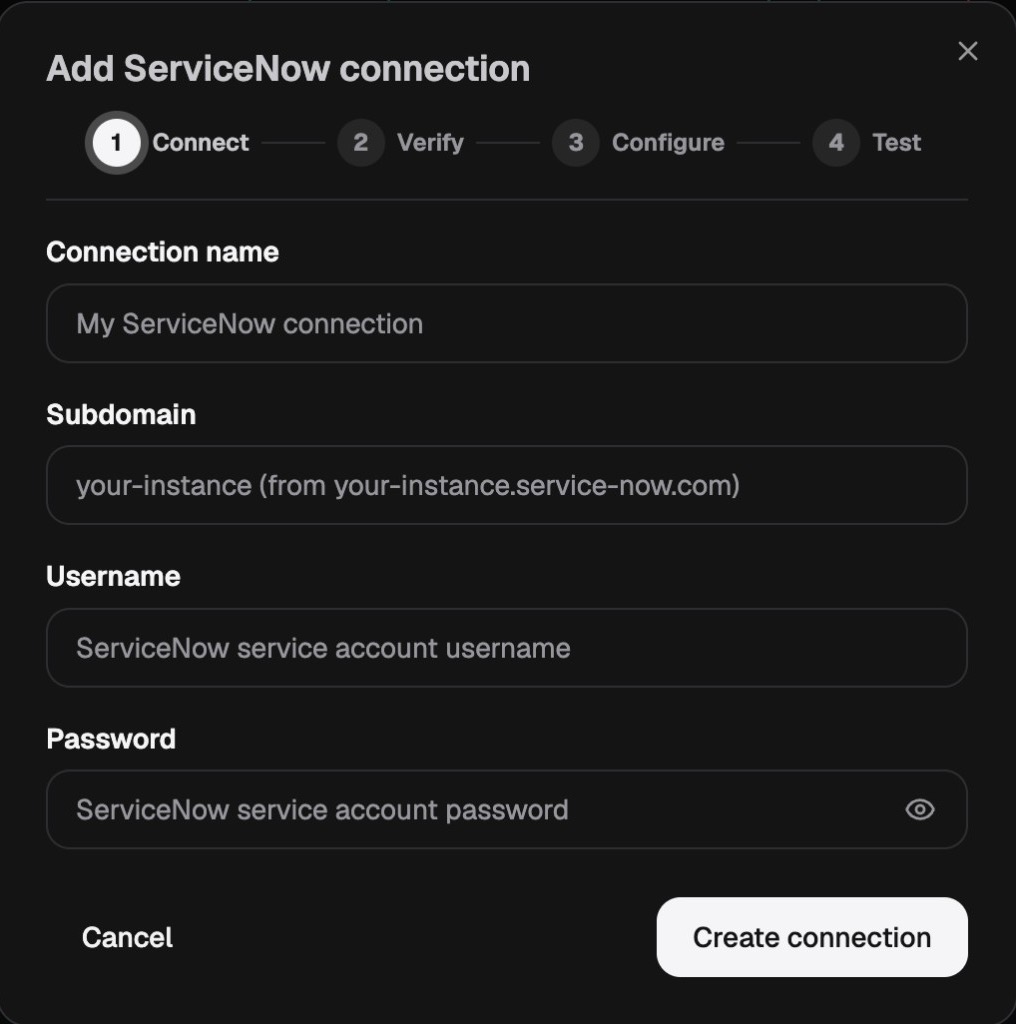
| Field | What to enter |
|---|---|
| Connection name | A friendly label that helps admins recognise this credential set, for example ACME ServiceNow Production. The name appears wherever connections are referenced in Data Out. Names must be unique across all of your Data Out connections, regardless of provider and ignoring upper and lower case. If the name is taken, the field shows A connection with this name already exists. |
| Subdomain | Your ServiceNow instance subdomain without https:// or .service-now.com, for example acme. |
| Username | The user name of the ServiceNow service account. |
| Password | The password for that account. Click the eye icon on the right to reveal the value and confirm you entered it correctly. |
Click Create connection (in create mode) or Update connection (when editing an existing connection).
If ServiceNow does not accept the credentials, the wizard shows Connection created but authorization failed. Please check your credentials. and stays on the Connect step. The connection has already been saved in a Failed state, so recover it with the steps in Re-authorize a connection rather than creating a second connection with the same name.
Step 2 - Verify
JupiterOne uses the credentials to confirm the account can sign in and to read a sample of the tables in your instance. If you see Your connection is working! plus a list of table names under Here are some tables we can see with the created connection, the credentials are good and the account has the read access Data Out needs.
The list shows up to five tables, for example Incident, Problem, and Change Request. It is a connectivity check only - Data Out always creates incidents, regardless of which tables appear in the list.
- If you are editing an existing connection, click Finish - your connection is saved
- If you are creating a new connection, click Next to continue into the instance setup steps below
If verification fails, head to Troubleshoot ServiceNow Data Out for common causes.
Steps 3 and 4 - Configure and Test (create flow only)
When you create a brand-new connection, the wizard continues directly into the same Configure and Test steps that the Add ServiceNow instance wizard uses, so you finish with a working connection and a first running instance in one pass.
These steps are documented in detail on the Create a ServiceNow instance page. Briefly:
- Configure - name the workflow, optionally pick a Data in ServiceNow integration, and click Create workflow
- Test - send a test incident to confirm the round-trip works, or click Finish to skip the test
Click Finish at the end of the Test step. The new connection appears on the ServiceNow provider page with a green Connected badge, and the first instance shows up in the connection's instance table.
Authorization status
Each connection carries an Authorization status badge that tells you whether the credentials are still good.
| Badge | What it means | What to do |
|---|---|---|
| Connected (green dot) | Credentials are valid; instances backed by this connection can run | Nothing - you are good |
| Failed (red dot) | ServiceNow rejected the credentials - the password changed or expired, the account was disabled or lost access, or Password needs reset was set | Follow Re-authorize a connection |
A connection in the Failed state also shows a red banner on its card - This connection failed authorization and needs to be re-authorized. - with a Re-authorize button.
The badge is visible on the provider catalog card (Connections tab, where a failing connection counts as an error) and on the per-provider detail page next to each connection name.
Edit an existing connection
- Open Data out > Connections > ServiceNow
- Find the connection card and click the kebab menu (
...) on the right of the connection header - Click Edit
- The wizard opens directly on the Connect step with the connection name filled in. Subdomain, Username, and Password start empty - re-enter all three, because JupiterOne does not display stored credentials
- Click Update connection, step through Verify, and click Finish
In edit mode, the wizard skips the Configure and Test steps because you are not creating a new instance - just updating credentials.
Re-authorize a connection
When the badge says Failed, the most common causes are a changed or expired password, a disabled service account, or a Password needs reset flag on the account. To recover:
- Fix the problem in ServiceNow - reset or unlock the account, clear Password needs reset, or restore its roles
- Open Data out > Connections > ServiceNow
- Click Re-authorize in the red banner, or click the kebab menu next to the failing connection and choose Edit
- Re-enter Subdomain, Username, and the current Password on the Connect step
- Click Update connection, confirm Verify is green, and click Finish
Existing instances backed by this connection use the updated credentials on their next run - you do not need to recreate them.
Delete a connection
You can delete a connection only when no instances depend on it.
- Delete every instance that uses the connection. See Manage instances
- Open Data out > Connections > ServiceNow
- Click the kebab menu next to the connection and choose Delete
- Confirm the action
While instances still use the connection, Delete is disabled and shows the tooltip Delete all instances before removing this connection. Deletion is irreversible. To stop a single instance without removing its connection, use Stop on the instance row instead.
Permissions
Connections are admin-only. You must be a full admin in the JupiterOne workspace to create, edit, re-authorize, or delete a ServiceNow connection. See Data Out overview.